Publishing and Updating Your Website
Building your site in the CyclebreezeHost Website Builder does not automatically make it visible to the public. You control exactly when changes go live using the Publish button. This article explains how to publish your site for the first time, push updates, and manage your published and draft versions.
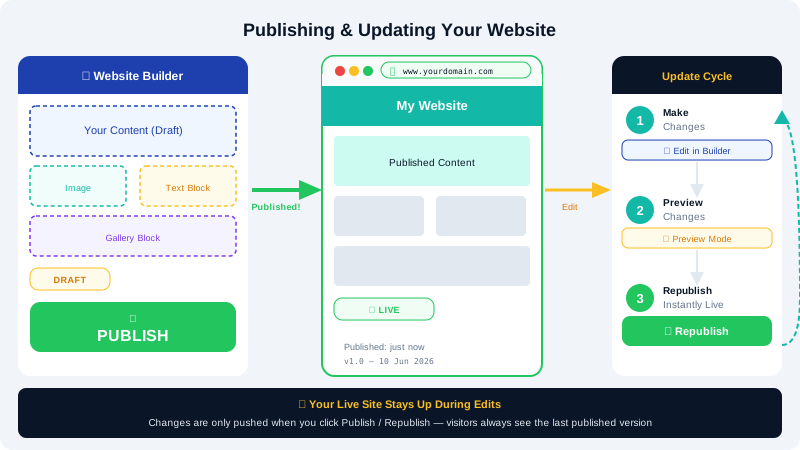
Understanding Draft vs. Published
The Website Builder maintains two states for your site:
| State | What it means |
|---|---|
| Draft | Changes are saved but only visible to you in the editor — the live site is unchanged |
| Published | Your changes are live and visible to all visitors at your domain |
This separation lets you work on your site at your own pace without disrupting live visitors.
Publishing for the First Time
When your site is ready to go live:
- Open the Website Builder from cPanel or the CyclebreezeHost Client Area at https://clients.cyclebreezehost.com.
- Review your site using the Preview button to check it on desktop, tablet, and mobile.
- When you are happy, click the Publish button in the top toolbar.
- If you have not yet connected a domain, the builder will prompt you to connect one or publish to a temporary preview URL. For instructions on connecting a domain, see Connecting Your Domain to Your Site.
- Confirm the publish action. Your site goes live within seconds.
Pushing Updates After Publishing
Whenever you make changes to an already-published site, those changes stay in draft mode until you publish again. To push updates:
- Make your edits in the editor (update text, swap images, add pages, adjust styles).
- Click Save to preserve your draft.
- When you are ready to push the changes live, click Publish.
- The updated site replaces the previous live version immediately.
There is no downtime during publishing — the old version serves visitors right up until the moment the new version is deployed.
Publishing Individual Pages
Some versions of the Website Builder allow you to publish changes to a single page without republishing the entire site. If this option is available:
- Open the page you have edited in the Pages panel.
- Look for a Publish Page or Update Page option in the page settings.
- Click it to push only that page's changes live.
If a per-page option is not available, use the global Publish button to publish all pending changes across all pages at once.
Previewing Before Publishing
Use the preview feature to thoroughly review your site before committing changes to visitors:
- Click Preview in the top toolbar.
- The site opens in a new tab without the editor overlay, showing exactly what visitors will see.
- Test all navigation links, buttons, and forms in the preview.
- Check the Mobile and Tablet views using the viewport toggle in the editor toolbar.
Reverting to a Previous Version
If you publish a change and then decide you preferred an earlier version, look for a Version History or Revisions option in the editor's menu. This feature (if available in your builder version) lists previously published snapshots and lets you restore one with a single click.
If version history is not available, you can manually undo recent changes using the Undo button (or keyboard shortcut Ctrl+Z / Cmd+Z) before publishing again.
Taking Your Site Offline
If you need to temporarily remove your site from public view:
- In Site Settings, look for a Site Visibility or Unpublish option.
- Setting the site to Private or Offline will display a placeholder or redirect to a maintenance page instead of your content.
Alternatively, you can replace your home page content with a "Coming Soon" or "Under Maintenance" message, then publish that as a temporary state.
Common Publishing Issues
| Problem | Likely cause | Fix |
|---|---|---|
| Publish button is greyed out | No domain connected | Connect a domain first — see Connecting Your Domain to Your Site |
| Changes not visible after publishing | Browser cache showing the old version | Hard-refresh with Ctrl+Shift+R (Windows) or Cmd+Shift+R (Mac) |
| Site shows placeholder page | Domain DNS not fully propagated | Wait up to 24 hours for DNS propagation |
| Broken layout on mobile after publish | Mobile view not reviewed before publishing | Use the editor's mobile preview and fix layout before republishing |
For assistance with publishing, contact CyclebreezeHost support at info@cyclebreezehost.com — available 24/7.