Reactivating a Suspended or Expired Service
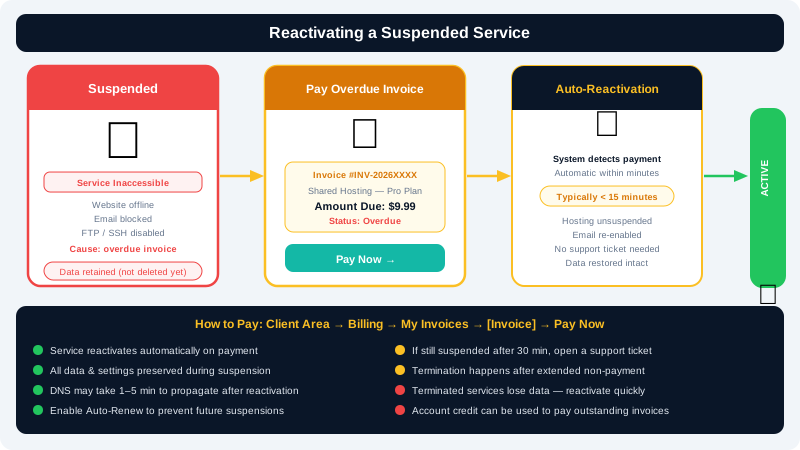
If a CyclebreezeHost service — such as a hosting plan, VPS, or domain — has been suspended or has expired, you can usually restore it by settling the outstanding balance through the Client Area. This article explains the suspension timeline, how to reactivate, and what to do if your service data is at risk of being deleted.
Why Services Are Suspended
CyclebreezeHost suspends services when an invoice remains unpaid after the due date. The typical sequence is:
- Invoice generated — issued 14 days before the renewal date.
- Due date reached — payment is attempted automatically if a payment method is saved.
- Overdue notice — reminder emails are sent if payment fails.
- Suspension — the service is suspended a few days after the due date. Websites go offline; VPS servers are powered down.
- Termination — if the invoice remains unpaid for an extended period (typically 14–30 days after suspension), the service and its data may be permanently deleted.
The exact grace periods are shown in the suspension email you receive. Act as quickly as possible to avoid data loss.
Step 1: Log In and Find the Invoice
- Log in to the Client Area at https://clients.cyclebreezehost.com.
- Go to Billing > My Invoices.
- Look for invoices with the status Unpaid or Overdue. Click on the relevant invoice to open it.
Step 2: Pay the Invoice
- On the invoice page, verify the amount due, which may include a late fee if your account terms include one.
- Select your payment method from the dropdown.
- Click Pay Now.
- For card payments, the charge is processed immediately. For EFT/bank transfer, email proof of payment to info@cyclebreezehost.com with your invoice number as the reference.
Step 3: Reactivation
For card and PayPal payments, reactivation is typically automatic:
- Shared hosting / application hosting — the account is unsuspended within a few minutes of payment confirmation.
- VPS and Dedicated Servers — the server is powered back on automatically, usually within 5–15 minutes.
- Domain names — if the domain renewal was missed, see the domain-specific section below.
If your service is not restored within 30 minutes of a successful payment, open a support ticket so the team can manually trigger reactivation.
Domain Name Expiry
Domain reinstatement has additional steps and costs depending on how long the domain has been expired:
| Time Since Expiry | Status | Action |
|---|---|---|
| 0–30 days | Expired (grace period) | Renew at standard price in the Client Area |
| 30–60 days | Redemption period | Renew at a redemption fee (significantly higher) |
| 60+ days | Deleted / pending release | Domain re-enters public availability; you must register it again |
Always renew domains before they expire to avoid redemption fees. Enable Auto Renew in the Client Area under your domain's management page.
If Your Data Has Been Deleted
If the service has already been terminated and data deleted, CyclebreezeHost may not be able to recover it. However:
- If you had a managed backup add-on active before termination, contact support immediately — backups may still be accessible for a short window.
- If you created manual snapshots from the server control panel, those may also still be available. Contact info@cyclebreezehost.com as soon as possible.
Preventing Future Suspensions
- Enable Auto Renew on all services from their management pages in the Client Area.
- Save a valid payment method so automatic charges succeed on the due date.
- Keep your contact email address up to date so you receive reminder and overdue notices.
- Set up a calendar reminder a few days before your renewal date as an extra safety net.
Need Help?
If you have paid but your service has not been restored, or if you need to discuss a payment arrangement, contact CyclebreezeHost support at info@cyclebreezehost.com or open a ticket in the Client Area at https://clients.cyclebreezehost.com. Our team is available 24/7.