How to Read Your Website Error Logs
When your website displays a blank page, a 500 error, or behaves unexpectedly, error logs are your first diagnostic tool. CyclebreezeHost's cPanel provides easy access to server-side error logs that record PHP errors, script failures, and other issues as they happen. Learning to read these logs will save you hours of guesswork when troubleshooting.
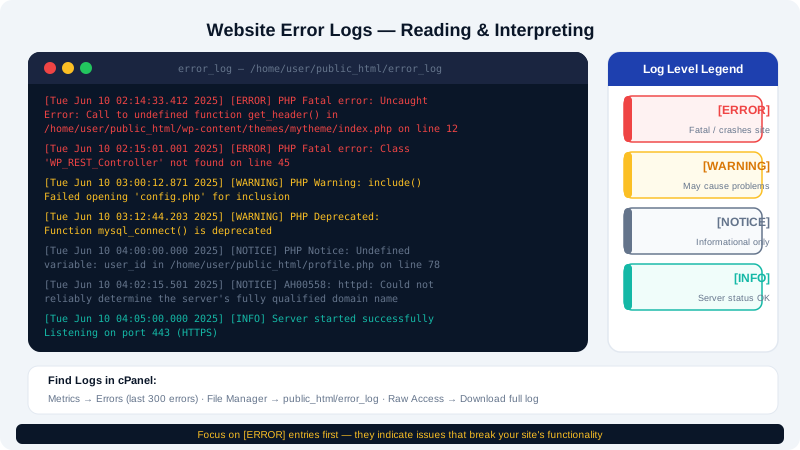
Where to Find Error Logs in cPanel
- Log in to the Client Area at https://clients.cyclebreezehost.com and open cPanel.
- In the Metrics section, click Errors.
- cPanel will display the last 300 entries from your account's Apache/LiteSpeed error log.
For a complete log file, use File Manager or FTP to access the raw log at:
/home/username/logs/yourdomain.com.error.log
Replace username with your cPanel username and yourdomain.com with your domain name. If this path does not exist, some accounts store logs under /home/username/public_html/logs/ — check both locations.
Understanding Log Entry Format
A typical error log entry looks like this:
[Mon Jun 10 14:32:05.123456 2026] [php:error] [pid 12345] [client 198.51.100.42:54321] PHP Fatal error: Uncaught Error: Call to undefined function my_function() in /home/username/public_html/wp-content/themes/mytheme/functions.php on line 87
Breaking this down:
| Part | Meaning |
|---|---|
[Mon Jun 10 14:32:05 ...] | Date and time the error occurred |
[php:error] | Error source and severity level |
[pid 12345] | Server process ID (usually not needed for debugging) |
[client 198.51.100.42] | IP address of the visitor who triggered the error |
PHP Fatal error: ... | The actual error message |
in /home/.../functions.php on line 87 | The exact file and line number where the error occurred |
Common PHP Error Types
| Error Type | Severity | What It Means |
|---|---|---|
Fatal error | Critical | Script stopped. The page will not load. Requires immediate fixing. |
Parse error | Critical | Syntax mistake in PHP code (missing semicolon, unclosed bracket). |
Warning | Moderate | Something unexpected happened, but the script continued. |
Notice | Low | Minor issue such as using an undefined variable. Often harmless. |
Deprecated | Informational | A PHP function being used is scheduled for removal in a future version. |
Common Error Messages and What They Mean
Call to undefined function — The code is calling a function that does not exist. This often means a required plugin or file was not loaded.
Class not found — An autoloader failed to locate a class file. Common after moving files or an incomplete upload.
Permission denied — The web server cannot read or write a file. Check that the file/folder permissions are set correctly (644 for files, 755 for directories is standard).
Maximum execution time exceeded — A script ran for longer than PHP's max_execution_time limit. The script may be stuck in a loop or performing a slow database operation.
Allowed memory size exhausted — The script used more RAM than PHP's memory_limit setting allows. You may need to increase the limit — see the Managing PHP Settings and Resource Limits article.
.htaccess: Invalid command — A directive in your .htaccess file is not recognised. Usually caused by a typo or an Apache module that is not enabled.
Enabling PHP Error Logging for Your Site
If errors are not appearing in cPanel's log viewer, you may need to enable logging in your PHP configuration:
- Open MultiPHP INI Editor in cPanel.
- Select your domain.
- Find
log_errorsand set it toOn. - Set
error_logto a writable path such as/home/username/logs/php_errors.log. - Click Apply.
For WordPress specifically, you can enable debug logging by adding these lines to wp-config.php:
define( 'WP_DEBUG', true );
define( 'WP_DEBUG_LOG', true );
define( 'WP_DEBUG_DISPLAY', false );
WordPress will write errors to wp-content/debug.log.
Monitoring Logs in Real Time
To watch a log file update live, use the cPanel Terminal:
tail -f /home/username/logs/yourdomain.com.error.log
This streams new entries as they are written, which is useful when reproducing a specific error.
If you are unable to identify the cause of an error from the logs, copy the relevant log lines and open a support ticket in the Client Area or email info@cyclebreezehost.com. The CyclebreezeHost support team is available 24/7.