Rebooting and Reinstalling Your VPS
Sometimes a server needs a clean restart to recover from an unresponsive state, or you need to start fresh with a new operating system installation. Both actions are available directly from your CyclebreezeHost Client Area without needing to contact support. This guide explains when and how to use each option.
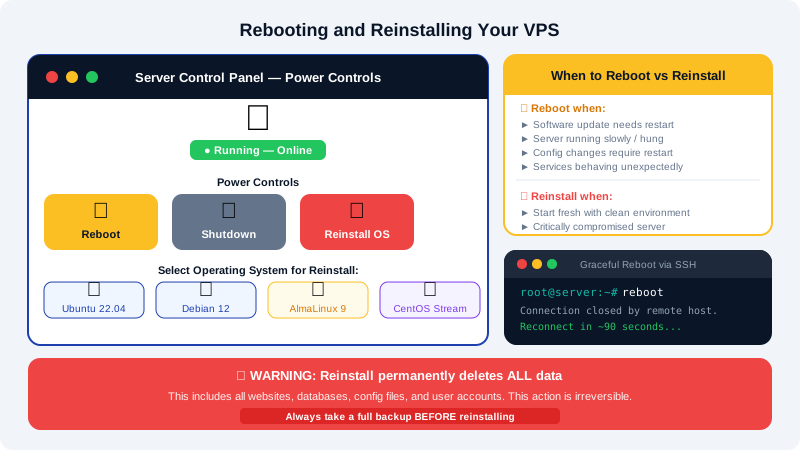
Rebooting Your VPS
A reboot is a controlled restart of the server's operating system. Use it when:
- The server is running slowly and you want to clear memory and reset processes
- A software update requires a reboot to take effect (e.g., a kernel update)
- Services are behaving unexpectedly and a restart will resolve it
- You have made configuration changes that require a full restart
Graceful Reboot via SSH (Preferred)
If you can still connect via SSH, a graceful reboot allows the OS to close processes cleanly:
reboot
Or equivalently:
shutdown -r now
The server will disconnect your SSH session and come back online within about 60–90 seconds. Wait a moment, then reconnect with ssh root@your-server-ip.
Forced Reboot via the Control Panel
If the server is unresponsive and SSH is unreachable, use the power controls in your CyclebreezeHost Client Area:
- Log in at https://clients.cyclebreezehost.com.
- Navigate to Services and select your VPS or dedicated server.
- Click Server Control Panel.
- In the control panel, locate the power controls and select Reboot or Reset.
A forced reboot (also called a hard reset) is equivalent to cutting power and restoring it. Use it only when the server is genuinely unresponsive, as it does not allow the OS to shut down gracefully.
Checking Why the Server Is Unresponsive
Before rebooting, check whether the server is truly down:
- Try connecting via SSH from a different network.
- In the Client Area, open the Console/VNC session to see the server's display output — this can reveal boot errors, kernel panics, or login prompts.
- Review usage graphs in the control panel for CPU or RAM spikes that may be causing the slowdown.
Reinstalling the Operating System
A reinstall wipes your server and installs a fresh copy of the selected operating system. Use it when:
- You want to start from scratch with a clean environment
- The server is critically compromised by malware and cannot be safely recovered
- You want to switch to a different Linux distribution
- The OS installation is damaged and the server cannot boot normally
Warning: A reinstall permanently deletes all data on the server, including websites, databases, configuration files, and user accounts. Back up anything you need before proceeding.
How to Reinstall via the Control Panel
- Log in at https://clients.cyclebreezehost.com.
- Navigate to Services and select your VPS or dedicated server.
- Click Server Control Panel.
- Find the Reinstall or Rebuild option (the exact label depends on the panel view).
- Select your desired operating system from the available list (Ubuntu, Debian, AlmaLinux, and others are typically offered).
- Confirm the action. You will usually be asked to acknowledge that all data will be erased.
- The reinstall process runs automatically. It typically completes in 5–15 minutes.
- Once complete, new root credentials will be displayed in the Client Area or emailed to you.
After a Reinstall
After a fresh installation, follow the initial setup steps from the Getting Started with Your VPS article:
- Connect via SSH using the new credentials.
- Run
apt update && apt upgrade -y(Ubuntu/Debian) ordnf update -y(AlmaLinux) to apply the latest updates. - Create a non-root user for regular use.
- Configure the firewall before opening any services to the internet.
- Restore your website files and databases from backup if applicable.
Scheduling Maintenance
For production servers, plan maintenance windows to minimise impact:
- Notify users of downtime in advance if your site has active visitors.
- Take a backup immediately before any major change — reinstalls are irreversible.
- Test your SSH connection immediately after a reboot to confirm the server came back online.
If your server does not come back online after a reboot or reinstall, or you need help restoring data, contact CyclebreezeHost support at info@cyclebreezehost.com or open a ticket at https://clients.cyclebreezehost.com. Our team is available 24/7.