Recovering from a Failed Payment
A failed payment can happen for many reasons — an expired card, insufficient funds, a bank security block, or an outdated billing address. Whatever the cause, acting quickly is important: unpaid invoices can lead to service suspension, and suspended services can affect your website, email, and domains. This article explains what happens when a payment fails and how to get back on track.
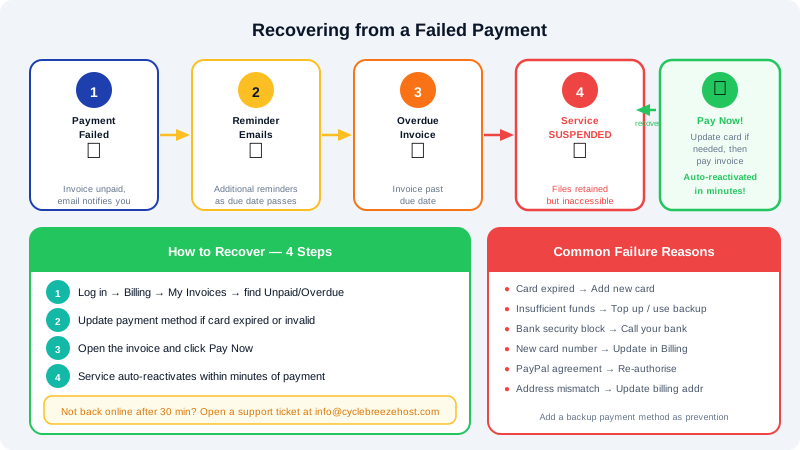
What Happens After a Failed Payment
- Invoice generated: A renewal invoice is created and emailed to your billing address.
- Auto-pay attempt: If auto-renew is enabled, CyclebreezeHost attempts to charge your default payment method.
- Failure notification: If the charge fails, you receive an email notifying you that the invoice is unpaid.
- Reminder emails: Additional reminders are sent as the due date passes.
- Service suspended: If the invoice remains unpaid after the grace period, the associated service is suspended. Your files and data are retained but inaccessible.
- Service terminated: If the suspension continues for an extended period without payment, the service may be permanently terminated and data deleted. This timeline varies — act before this stage.
How to Resolve a Failed Payment
Step 1 — Identify the unpaid invoice
- Log in to the Client Area at https://clients.cyclebreezehost.com.
- The dashboard will display a notification for any overdue invoices.
- Go to Billing > My Invoices and look for invoices with the status Unpaid or Overdue.
Step 2 — Update your payment method (if needed)
If the failure was due to an expired or invalid card:
- Go to Billing > Payment Methods.
- Click Add New Credit Card and enter your updated card details.
- Set the new card as your Default payment method.
- Delete the old expired card if you no longer need it.
Step 3 — Pay the invoice
- Open the overdue invoice.
- Select your updated payment method.
- Click Pay Now and follow the prompts to complete payment.
- Once payment is confirmed, you will receive a receipt by email and the invoice status will change to Paid.
Step 4 — Request service unsuspension
For most services, your account is automatically reactivated within a few minutes of a successful payment. If your service does not come back online within 30 minutes:
- Open a support ticket in the Client Area or email info@cyclebreezehost.com.
- Include your invoice number and service name.
- CyclebreezeHost support will manually unsuspend the service and confirm when it is active again.
Common Reasons for Payment Failure
| Reason | Fix |
|---|---|
| Card expired | Add a new card in Payment Methods |
| Insufficient funds | Top up your account or use a different card |
| Bank declined for security reasons | Contact your bank to allow the transaction, then retry |
| Card details changed (new card number) | Add the new card and set as default |
| PayPal agreement cancelled | Re-authorise the PayPal billing agreement in the Client Area |
| Billing address mismatch | Update the billing address on file to match your card issuer's records |
Preventing Future Payment Failures
- Keep your card expiry date and billing address up to date in Billing > Payment Methods.
- Add a secondary payment method as a backup so auto-pay can fall through to it if the primary fails.
- Ensure your billing email address is current and monitored — failed payment notices are sent there first.
- Consider paying for hosting on a longer term (annual or biennial) to reduce the frequency of billing events.
Need Help?
If you are unable to complete payment or are unsure why your service was suspended, contact CyclebreezeHost support at info@cyclebreezehost.com or open a ticket in the Client Area. Our team is available 24/7 and can assist with payment issues, temporary extensions, and service restoration.