Reducing Spam with SpamAssassin
SpamAssassin is a mail filtering tool built into cPanel. It analyses each incoming message and assigns a spam score based on characteristics of the message headers, body, and sending server. Messages that exceed a threshold you define can be flagged, filtered into a Junk folder, or deleted automatically.
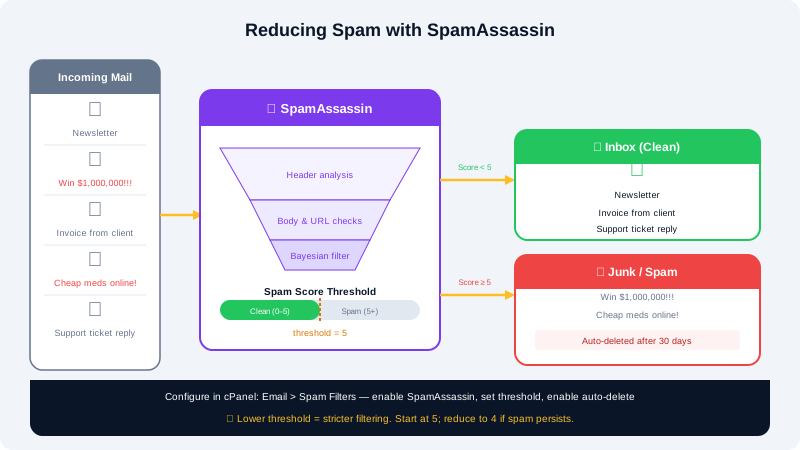
Enabling SpamAssassin
- Log in to cPanel at
https://yourdomain.com:2083. - Under the Email section, click Spam Filters.
- Click the toggle next to Process New Emails and Mark them as Spam to turn SpamAssassin on.
- Optionally, enable Automatically Delete New Spam (Auto-Delete) if you want SpamAssassin to discard messages that score very high. See the caution note below before enabling this.
Once enabled, SpamAssassin adds an X-Spam-Status and X-Spam-Score header to every message it processes. Flagged messages have ***SPAM*** prepended to their subject line by default.
Understanding Spam Scores
SpamAssassin scores each message on a scale. The default threshold is 5 — messages scoring 5 or above are considered spam. A lower threshold catches more spam but increases the risk of false positives (legitimate mail flagged as spam). A higher threshold is more permissive.
| Score range | Meaning |
|---|---|
| 0–2 | Likely legitimate |
| 3–4 | Borderline — review carefully |
| 5–7 | Probable spam |
| 8+ | Almost certainly spam |
Adjusting the Spam Score Threshold
- In cPanel, go to Email → Spam Filters.
- Click Spam Threshold Score under the Spam Filters heading.
- Move the slider or enter a number. A value of
5is recommended for most users. - Click Update Spam Settings.
Setting Up Spam Box (Recommended)
Instead of deleting suspected spam, route it to a dedicated Junk folder so you can review false positives before permanently discarding them.
- On the Spam Filters page, enable Move New Spam to a Separate Folder (Spam Box).
- SpamAssassin will deliver flagged messages to a folder called
spamin your mailbox. - In Roundcube webmail or your mail client, periodically review this folder and mark any false positives as Not Spam to help train the filter.
Whitelisting and Blacklisting Addresses
You can tell SpamAssassin to always allow or always block mail from specific senders.
- Go to Email → Spam Filters in cPanel.
- Click Show Additional Configurations at the bottom of the page.
- Under Whitelist (Addresses to Never Filter), add trusted sender addresses.
- Under Blacklist (Addresses to Always Filter), add senders you always want flagged as spam.
- Use wildcards to match a whole domain — for example,
*@spammydomain.com.
Caution with Auto-Delete
Enabling Auto-Delete permanently removes messages that exceed the auto-delete threshold (default 5). There is no recovery option once a message is deleted. It is safer to use Spam Box so you can review borderline messages. If you do enable auto-delete, set the threshold to 8 or higher to reduce the chance of losing legitimate email.
Troubleshooting
| Problem | Solution |
|---|---|
| Spam still arriving in inbox | Lower the spam threshold score, or add the sender's domain to your blacklist |
| Legitimate mail flagged as spam | Add the sender to your whitelist; also check their SPF/DKIM records are valid |
| Spam Box folder not appearing | Confirm Spam Box is enabled; the folder is created after the first flagged message arrives |
| SpamAssassin not processing mail | Ensure it is toggled on in cPanel; contact support if the toggle does not save |
For further spam filtering assistance, open a support ticket at https://clients.cyclebreezehost.com or email info@cyclebreezehost.com. Our team is available 24/7.