Resetting Your WordPress Password
Losing access to your WordPress admin account is a common problem with several reliable solutions. Depending on what you still have access to — your admin email address, your cPanel account, or the command line — you can regain entry in just a few minutes.
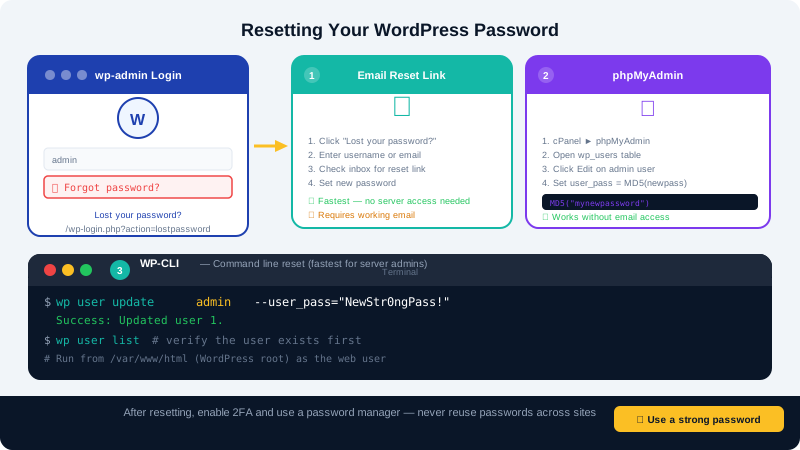
Method 1: Reset by Email (Easiest)
If your site can send email and you still have access to the admin email address:
- Go to
yourdomain.com/wp-login.php. - Click Lost your password? below the login form.
- Enter your username or admin email address and click Get New Password.
- Check your inbox for an email from WordPress and click the reset link.
- Enter a new password and click Reset Password.
If the email does not arrive, check your spam folder. If your site has email delivery issues, use one of the methods below instead.
Method 2: Reset via phpMyAdmin in cPanel
This method works even if WordPress cannot send email.
- Log in to cPanel at
yourdomain.com/cpanel. - Open phpMyAdmin under the Databases section.
- Select your WordPress database from the left-hand panel (it is usually named something like
username_wp). - Click the wp_users table (your prefix may differ if you changed the default).
- Click Edit (pencil icon) next to your admin user row.
- Find the
user_passfield. In the Function column, select MD5 from the dropdown. - In the Value field, delete the existing hash and type your new password in plain text.
- Click Go to save.
- Return to
yourdomain.com/wp-login.phpand log in with your new password.
Tip: After logging in, go to Users > Your Profile and update your password through the WordPress interface. WordPress will then store it using its stronger hashing method instead of plain MD5.
Method 3: Reset via WP-CLI (Advanced)
WP-CLI is available on all CyclebreezeHost accounts through Terminal in cPanel or via SSH.
- Open Terminal in cPanel (under Advanced) or connect via SSH.
- Navigate to your WordPress root directory:
cd ~/public_html - Run the password update command, replacing
adminwith your actual username:wp user update admin --user_pass="YourNewPassword123!" --allow-root - You will see a
Success: Updated user 1.confirmation. Log in normally.
Method 4: Add a New Admin via phpMyAdmin
If you cannot edit an existing user, create a new admin account directly in the database.
- In phpMyAdmin, select your WordPress database.
- Click the wp_users table, then click Insert.
- Fill in
user_login,user_pass(use MD5 function),user_email,user_registered(current date-time), anduser_status=0. - Note the new user's ID from the table.
- Switch to the wp_usermeta table and insert two rows for the new user ID:
meta_key=wp_capabilities,meta_value=a:1:{s:13:"administrator";b:1;}meta_key=wp_user_level,meta_value=10
- Log in to WordPress and delete this temporary account once you have reset your main account's password.
Still Locked Out?
If none of the above methods work, open a support ticket in your Client Area or email info@cyclebreezehost.com. Our team is available 24/7 and can assist with database-level access recovery.