Restarting and Managing Your Application
Once your Node.js, Python, or Ruby application is deployed on CyclebreezeHost, you manage its lifecycle — starting, stopping, and restarting — directly from cPanel using the Setup Node.js App or Setup Python App tool. This article explains each control and when to use it.
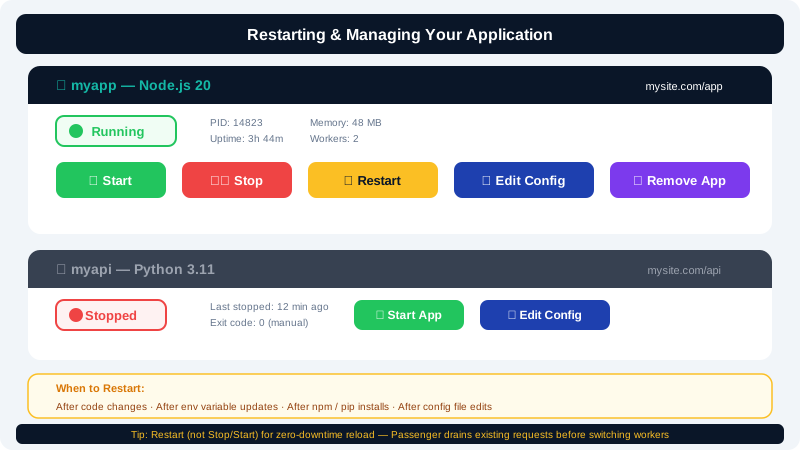
Opening Your Application's Controls
- Log in to cPanel.
- Under the Software section, click Setup Node.js App (for Node.js/Ruby) or Setup Python App (for Python).
- You will see a list of your configured applications, each showing its URL, runtime version, and current status.
- Click the edit (pencil) icon to open the full configuration and management panel for an application.
Application Status Indicators
| Status | Meaning |
|---|---|
| Running | The app is active and accepting requests |
| Stopped | The process has been manually stopped |
| Starting | Passenger is initialising the process |
| Error | The process failed to start — check the log |
Starting an Application
If your application is in a Stopped state:
- Open the application configuration page.
- Click Start.
Passenger will launch your startup file and begin routing requests from the configured application URL to the process. The first request after a cold start may take a moment while Passenger spins up the process.
Stopping an Application
Stopping an application terminates its process immediately. Visitors to the URL will receive a server error while the app is stopped.
- Open the application configuration page.
- Click Stop.
Use this when you need to perform maintenance, move files, or temporarily disable the application.
Restarting an Application
A restart gracefully stops the current process and immediately starts a fresh one. This is the most common action you will take after:
- Uploading updated source code files.
- Changing environment variables.
- Installing or updating dependencies with npm or pip.
- Modifying the startup file or application root.
To restart:
- Open the application configuration page.
- Click Restart.
The downtime during a restart is minimal — typically under a second.
Restarting via a Restart File (Advanced)
Passenger also watches for a restart.txt file inside a tmp directory in your application root. Touching this file triggers an automatic restart without going through cPanel:
mkdir -p ~/myapp/tmp
touch ~/myapp/tmp/restart.txt
This is useful if you deploy code via a script and want to trigger a restart automatically after each deployment.
Editing Application Configuration
You can change the runtime version, application URL, startup file, or application mode (Production / Development) at any time:
- Open the application configuration page.
- Update the relevant fields.
- Click Save.
- Click Restart to apply the new configuration.
Deleting an Application
To remove an application entirely:
- Return to the main Setup Node.js App or Setup Python App listing.
- Click the delete (bin) icon next to the application.
- Confirm the deletion.
Deleting the application removes the Passenger configuration and the virtual environment. Your source code files in the application root directory are not deleted automatically — remove them via File Manager separately if needed.
Automatic Recovery
Phusion Passenger monitors your application's process automatically. If the process crashes unexpectedly, Passenger restarts it on the next incoming request. You do not need to set up a separate process monitor.
Getting Help
If your application will not start or keeps crashing after a restart, the Troubleshooting Application Startup Errors article covers log reading and common fixes. You can also open a support ticket in the Client Area at https://clients.cyclebreezehost.com or email info@cyclebreezehost.com — CyclebreezeHost support is available 24/7.