Scanning for and Removing Malware
Malware on your hosting account can redirect visitors, steal data, send spam, or get your site blacklisted by search engines. Catching and removing it quickly limits the damage. This guide walks you through scanning your account and cleaning up any infections.
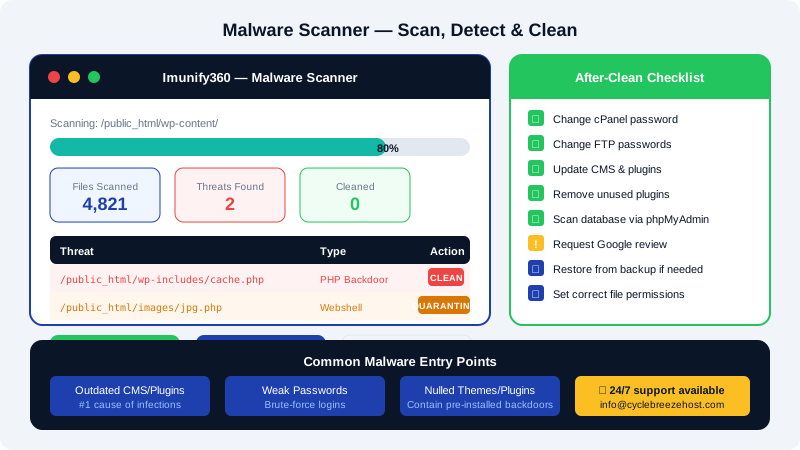
Signs Your Site May Be Infected
Before running a scan, watch for these common warning signs:
- Google or browsers display a "This site may be hacked" or malware warning
- Visitors are redirected to unfamiliar websites
- Your hosting account is suspended for abuse or spam
- You notice unfamiliar files or recently modified files you did not change
- Emails sent from your domain are flagged as spam by recipients
Running a Malware Scan in cPanel
CyclebreezeHost shared hosting includes a built-in malware scanner powered by Imunify360 (where available), accessible directly from cPanel.
- Log in to cPanel via your CyclebreezeHost Client Area at https://clients.cyclebreezehost.com.
- In the Security section, click Imunify360 or Virus Scanner.
- Click Scan to start a full account scan. This may take several minutes depending on file count.
- Once complete, review the results. Each flagged item shows the file path, threat name, and recommended action.
- For each infected file, choose Clean to attempt automatic repair, Delete if the file is not needed, or Quarantine to isolate it without deleting.
Reviewing Recently Modified Files
Malware often injects code into legitimate files. Check for unexpected recent changes:
- In cPanel, open the File Manager.
- Navigate to your
public_htmlfolder. - Sort files by Last Modified to bring recent changes to the top.
- Open any suspicious PHP or JavaScript files. Look for obfuscated code — long strings of
base64_decode,eval(), orgzinflate()are common red flags.
Cleaning Up After a Scan
After removing malicious files, take these steps to prevent reinfection:
- Change all passwords — cPanel, FTP, database users, and your CMS admin account (e.g., WordPress).
- Update your CMS and plugins — outdated installations are the most common malware entry point.
- Remove unused plugins and themes — every inactive plugin is a potential vulnerability.
- Check your database for injected spam links or unknown admin accounts via phpMyAdmin in cPanel.
- Request a Google review if your site was blacklisted — submit a review request in Google Search Console once your site is clean.
Restoring from a Backup
If the infection is widespread, restoring from a clean backup is often the fastest option.
- In cPanel, go to Backup or JetBackup (if available).
- Choose a restore point from before the infection occurred.
- After restoring, update all software and change all passwords immediately.
Preventing Future Infections
| Action | Why It Helps |
|---|---|
| Keep CMS and plugins updated | Patches known vulnerabilities |
| Use strong, unique passwords | Prevents brute-force logins |
| Enable two-factor authentication | Blocks unauthorised admin access |
| Set correct file permissions | Stops scripts from writing to core files |
| Remove unused scripts and installs | Reduces the attack surface |
If you need help with a persistent infection or want a manual review, open a support ticket at https://clients.cyclebreezehost.com or email info@cyclebreezehost.com. Our team is available 24/7.