Securing a New Linux Server
A freshly provisioned server is in its most vulnerable state — it has a default configuration, root login is typically enabled, and every port is open to the internet. Taking the right steps in the first hour significantly reduces your attack surface. This guide covers the essential hardening actions to take on any new CyclebreezeHost VPS or dedicated server.
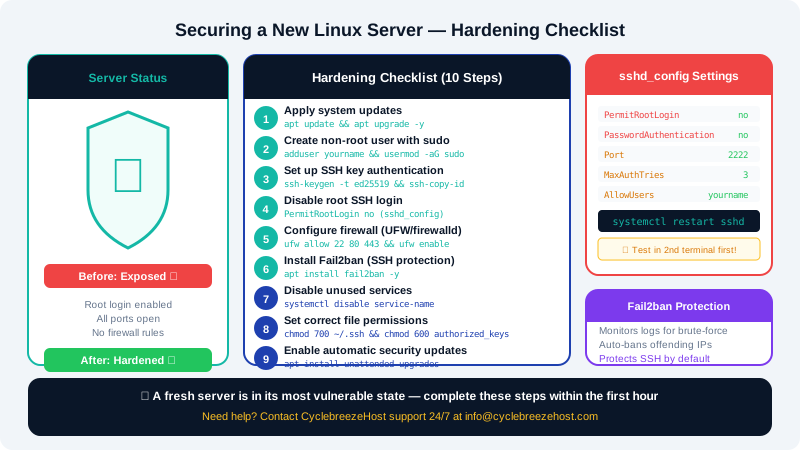
1. Apply All System Updates First
Before anything else, ensure the OS has the latest security patches:
Ubuntu/Debian:
apt update && apt upgrade -y
AlmaLinux/CentOS:
dnf update -y
Reboot if a kernel update was applied:
reboot
2. Create a Non-Root User with Sudo Access
Logging in as root for every task is risky — a mistake or a compromised session has unlimited privileges. Create a dedicated user:
Ubuntu/Debian:
adduser yourname
usermod -aG sudo yourname
AlmaLinux/CentOS:
adduser yourname
usermod -aG wheel yourname
passwd yourname
Log in as the new user in a second terminal to verify it works before you proceed.
3. Harden SSH Access
SSH is the most targeted service on any public-facing server. Edit the SSH configuration file:
nano /etc/ssh/sshd_config
Make the following changes:
| Setting | Recommended Value | Effect |
|---|---|---|
PermitRootLogin | no | Blocks root login over SSH |
PasswordAuthentication | no | Requires key-based login only |
Port | A non-standard port (e.g., 2222) | Reduces automated scan noise |
MaxAuthTries | 3 | Limits repeated login attempts |
AllowUsers | yourname | Restricts SSH to named users only |
After editing, restart SSH:
systemctl restart sshd
Before restarting, ensure your SSH key is installed so you are not locked out. See the How to Connect to Your VPS via SSH article for key setup instructions.
4. Set Up SSH Key Authentication
If you have not already done so, set up key-based SSH login:
- Generate a key pair on your local machine:
ssh-keygen -t ed25519 - Copy the public key to the server:
ssh-copy-id yourname@your-server-ip - Confirm you can log in with the key before disabling password authentication.
5. Configure the Firewall
Enable the firewall and allow only what is needed:
UFW (Ubuntu/Debian):
ufw allow 2222    # Your custom SSH port
ufw allow 80
ufw allow 443
ufw enable
firewalld (AlmaLinux/CentOS):
firewall-cmd --permanent --add-port=2222/tcp
firewall-cmd --permanent --add-service=http
firewall-cmd --permanent --add-service=https
firewall-cmd --reload
Deny everything else by default. See the Managing Your Server Firewall article for detailed instructions.
6. Install Fail2ban
Fail2ban monitors log files and automatically bans IP addresses that show signs of brute-force activity:
apt install fail2ban -y       # Ubuntu/Debian
dnf install fail2ban -y       # AlmaLinux
systemctl enable fail2ban
systemctl start fail2ban
The default configuration protects SSH. For advanced configuration, copy /etc/fail2ban/jail.conf to jail.local and customise from there.
7. Disable Unused Services
List services that start automatically and disable any you do not need:
systemctl list-unit-files --type=service --state=enabled
systemctl disable service-name
Every running service is a potential attack surface. If you are not using it, turn it off.
8. Set Correct File Permissions
Ensure sensitive files are not world-readable:
chmod 700 ~/.ssh
chmod 600 ~/.ssh/authorized_keys
For web server files, the web server user (e.g., www-data) should have read access but not write access to your application code.
9. Configure Automatic Security Updates
Keep the OS patched automatically between manual update sessions:
Ubuntu/Debian:
apt install unattended-upgrades -y
dpkg-reconfigure --priority=low unattended-upgrades
AlmaLinux/CentOS:
dnf install dnf-automatic -y
systemctl enable --now dnf-automatic.timer
10. Set Up Regular Backups
No hardening strategy is complete without backups. Options include:
- Automated snapshots from the server control panel in your CyclebreezeHost Client Area
- rsync to an offsite location via a cron job
- BorgBackup or Restic for encrypted, deduplicated backups
Test your backup restoration process before you need it.
If you need help with any of these steps or want a security review of your server configuration, contact CyclebreezeHost support at info@cyclebreezehost.com or open a ticket at https://clients.cyclebreezehost.com. Our team is available 24/7.