Securing Your Client Area with 2FA
Your CyclebreezeHost Client Area gives access to your invoices, payment methods, domain settings, and hosting services. A strong password is the first line of defence, but two-factor authentication (2FA) means that even if your password is ever compromised, an attacker still cannot log in without the time-based code generated on your phone. Enabling 2FA on your billing account takes under two minutes and is one of the most effective steps you can take to protect your account.
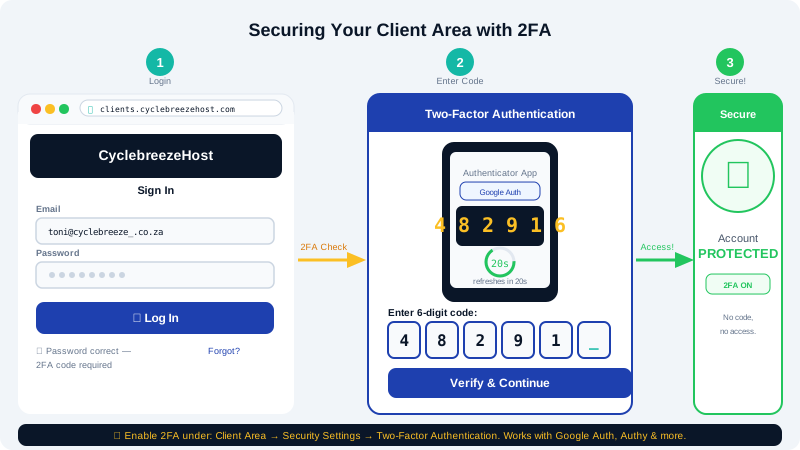
What You Will Need
- An authenticator app on your smartphone:
- Google Authenticator (Android / iOS)
- Authy (Android / iOS — recommended; supports encrypted cloud backup)
- Microsoft Authenticator (Android / iOS)
- Access to your Client Area at clients.cyclebreezehost.com.
Step 1: Go to Security Settings
- Log in to your Client Area using your email address and password.
- Click your name or account icon in the top-right corner.
- Select Security Settings from the dropdown menu.
Step 2: Enable Two-Factor Authentication
- On the Security Settings page, locate the Two-Factor Authentication section.
- Click Click here to enable.
- A QR code and a plain-text secret key will appear on screen.
Step 3: Scan the QR Code
- Open your authenticator app and tap + or Add Account.
- Choose Scan QR code and point your phone's camera at the QR code on your screen.
- If scanning fails, tap Enter code manually and type the secret key shown below the QR code.
- The app will create a new entry (typically labelled with your email address or "CyclebreezeHost") and display a 6-digit code that refreshes every 30 seconds.
Step 4: Verify and Save
- In your browser, type the current 6-digit code from your authenticator app into the Verification Code field.
- Click Submit or Enable Two-Factor Authentication.
- You will see a confirmation that 2FA is now active on your account.
Logging In With 2FA
From now on, every time you log in to your Client Area:
- Enter your email address and password as usual and click Login.
- A second screen will prompt you for your Authentication Code.
- Open your authenticator app and type the current 6-digit code.
- Click Login to complete the process.
Codes expire after 30 seconds. If the code expires while you are typing, wait for the next one to appear.
Keeping Your Account Recoverable
If you lose your phone or uninstall your authenticator app, you will be unable to log in with 2FA enabled. Protect yourself in advance:
- Back up your authenticator tokens. Authy stores encrypted backups in the cloud. Google Authenticator supports device-to-device transfer. Enable whichever backup method your app provides.
- Note your recovery options. Ensure your Client Area email address and the answers to any security questions on your account are stored securely (e.g., in a password manager).
- Contact support if locked out. If you lose access to your authenticator and cannot log in, contact our team at info@cyclebreezehost.com or open a ticket at clients.cyclebreezehost.com. We will verify your identity through an alternative process and disable 2FA so you can regain access.
Disabling 2FA
If you need to disable 2FA temporarily (for example, when switching to a new phone):
- Log in to your Client Area with your password and current authenticator code.
- Go to Security Settings.
- In the Two-Factor Authentication section, click Disable and confirm.
- Set up 2FA again from Step 1 using your new device before logging out.
Protecting the Rest of Your Account
2FA on the Client Area secures your billing and account management. For complete protection:
- Enable 2FA on cPanel as well — see the article Enabling Two-Factor Authentication on cPanel.
- Enable 2FA on your WordPress admin account using a plugin such as WP 2FA.
- Use a unique, randomly generated password for each account and store them in a dedicated password manager.
Need Help?
Our support team is available 24/7 via clients.cyclebreezehost.com or at info@cyclebreezehost.com.