Setting Up a Default (Catch-All) Address
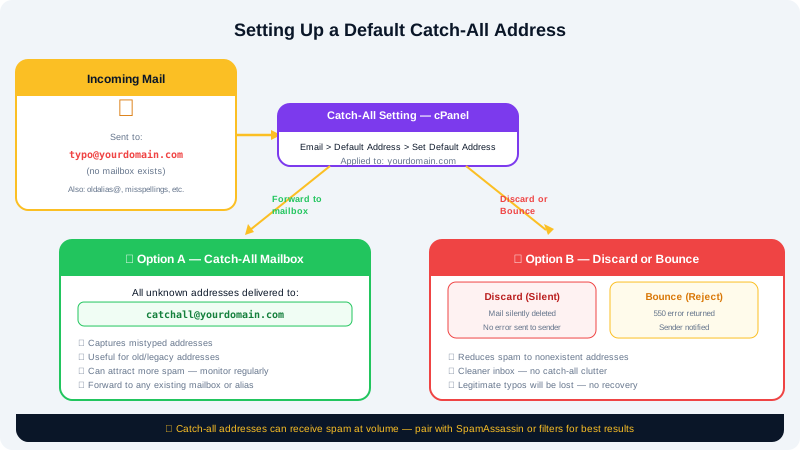
A default address (also called a catch-all) determines what happens when an email is sent to an address at your domain that does not exist. For example, if someone sends a message to info@yourdomain.com but that mailbox has not been created, the default address setting controls whether the message is delivered somewhere, bounced, or discarded. This guide explains how to configure the default address in cPanel.
Why Use a Catch-All?
A catch-all can be useful in several situations:
- Catching typos — a message sent to
supprot@yourdomain.cominstead ofsupport@yourdomain.comis still received. - Catching old addresses — useful during a transition when some senders may have outdated email addresses for your organisation.
- Catching form submissions — some third-party services send to auto-generated addresses.
However, a poorly configured catch-all can also attract significant spam, since spammers often guess random addresses at known domains. Weigh these trade-offs before enabling it.
Accessing the Default Address Setting
- Log in to cPanel via the Client Area at https://clients.cyclebreezehost.com.
- In the Email section, click Default Address.
- Select the domain you want to configure from the dropdown if you have more than one.
Available Options
cPanel gives you three options for unmatched email:
Option 1 — Discard (Recommended for Most Domains)
Discard with error to sender silently discards the message or sends a bounce notice back to the sender. Choosing this option prevents spam accumulation. cPanel offers two sub-options:
- Discard — deletes the message without notification.
- Send a failure notice and discard — returns a bounce message (e.g., "User does not exist") to the sender before discarding.
To enable this:
- Select Discard the email while your server processes it (or the failure notice variant).
- Click Update to save.
Option 2 — Forward to an Email Address
Deliver all unmatched mail to a specific mailbox you choose:
- Select Forward to email address.
- Enter the destination address (e.g.
admin@yourdomain.com). - Click Update.
All mail for non-existent addresses will land in that inbox. Monitor this mailbox regularly if you use this option, and consider setting up a filter to tag catch-all messages.
Option 3 — Forward to a System Account
You can also deliver unmatched mail to a cPanel system account. This is an advanced option and is rarely needed for standard email setups. Leave this as the default only if you have a specific reason to use it.
Checking the Current Setting
The Default Address page always shows the currently active option. Revisit this page any time you restructure your email setup to ensure the setting reflects your intended behaviour.
Reducing Spam on a Catch-All Address
If you use a forwarding catch-all and receive too much spam:
- In cPanel, go to Email > SpamAssassin and ensure spam filtering is enabled for the destination mailbox.
- Create an Email Filter (see the Creating Email Filters and Rules article) to route likely spam to a dedicated folder.
- Consider switching to Discard and creating only the specific addresses you need.
Temporary Catch-All Use Case
A common workflow is to enable a forwarding catch-all temporarily when migrating from an old domain or merging two organisations, then switch to Discard once all important senders have been updated with the correct addresses.
Need Help?
Contact CyclebreezeHost support at info@cyclebreezehost.com or open a ticket in the Client Area — our team is available 24/7.