Setting Up a Mailing List with Mailman
CyclebreezeHost cPanel hosting includes Mailman, a full-featured mailing list manager. You can use it to create announcement lists (one-way broadcasts), discussion lists (members can reply to the group), or newsletters. This guide walks through creating a mailing list, adding subscribers, and configuring basic settings.
What Is Mailman?
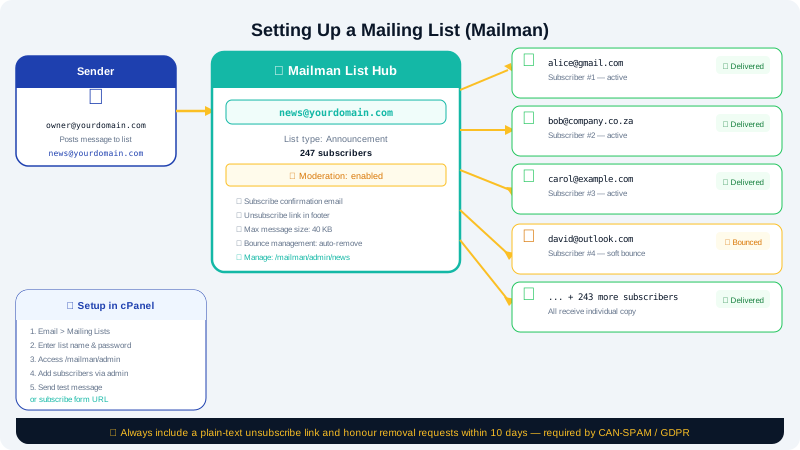
Mailman is open-source mailing list software integrated with cPanel. Each list gets its own email address (e.g. newsletter@yourdomain.com). When someone sends a message to that address, Mailman distributes it to all subscribers. Mailman also handles subscribe and unsubscribe requests automatically.
Step 1 — Create a Mailing List
- Log in to cPanel via the Client Area at https://clients.cyclebreezehost.com.
- In the Email section, click Mailing Lists.
- Click Add Mailing List.
- Fill in the following fields:
| Field | Description |
|---|---|
| List Name | The part before the @ (e.g. newsletter) |
| Domain | Select your domain from the dropdown |
| Password | Administrator password for the list management interface |
- Click Add Mailing List. Mailman will create the list and several administrative addresses automatically:
newsletter@yourdomain.com— the main posting addressnewsletter-subscribe@yourdomain.com— sends a subscribe requestnewsletter-unsubscribe@yourdomain.com— sends an unsubscribe requestnewsletter-admin@yourdomain.com— reaches the list administrator
Step 2 — Access the Mailman Administration Panel
- On the Mailing Lists page in cPanel, click Go to list admin interface next to your new list.
- Log in with the administrator password you set in Step 1.
The administration panel allows you to control all aspects of the list.
Step 3 — Add Subscribers
- In the Mailman admin panel, click Membership Management > Mass Subscription.
- In the text area, enter one email address per line for all subscribers you want to add.
- Choose whether to:
- Subscribe immediately without sending a confirmation email (suitable for internal lists or lists with prior consent)
- Invite — send each address a subscription invitation requiring opt-in confirmation
- Click Submit Your Changes.
Individual subscribers can also manage their own subscription by emailing newsletter-subscribe@yourdomain.com or by visiting the list's public info page.
Step 4 — Configure List Settings
In the Mailman admin panel, the General Options section lets you customise the list behaviour:
- Real name — a friendly display name for the list (e.g.
CyclebreezeHost Newsletter) - List description — a short description shown on the public info page
- Subject line prefix — optionally adds a tag to every subject line (e.g.
[Newsletter]) - Reply-To header — set to Explicit address and enter the list address for discussion lists, or leave as the original sender for announcement lists
- Advertise this list — controls whether the list appears in the public roster
Under Privacy Options, you can restrict who may post to the list. For an announcement list, set Restrict posting privilege to only allow the list owner or specific moderators to send messages.
Step 5 — Send a Message to the List
Once the list is configured and subscribers are added:
- Compose an email in any mail client using the list address as the To field (e.g.
newsletter@yourdomain.com). - Send the message. Mailman will distribute it to all subscribers.
If you are not the list owner, your message may be held for moderation depending on list privacy settings.
Managing Bounce Handling
Mailman automatically tracks email addresses that bounce repeatedly. Under Bounce Processing in the admin panel, you can configure how many bounces trigger an automatic unsubscribe or warning. Keeping bounce handling active protects your sender reputation.
Archiving
Mailman archives every message sent to the list. You can make archives Public or Private under Archiving Options. Archives are accessible at https://mail.yourdomain.com/pipermail/newsletter/.
Need Help?
Contact CyclebreezeHost support at info@cyclebreezehost.com or open a ticket in the Client Area — our team is available 24/7.