Setting Up an Email Account in cPanel
Creating a professional email address using your own domain name is one of the most common tasks in cPanel. This guide shows you how to create, configure, and manage email accounts for your domain.
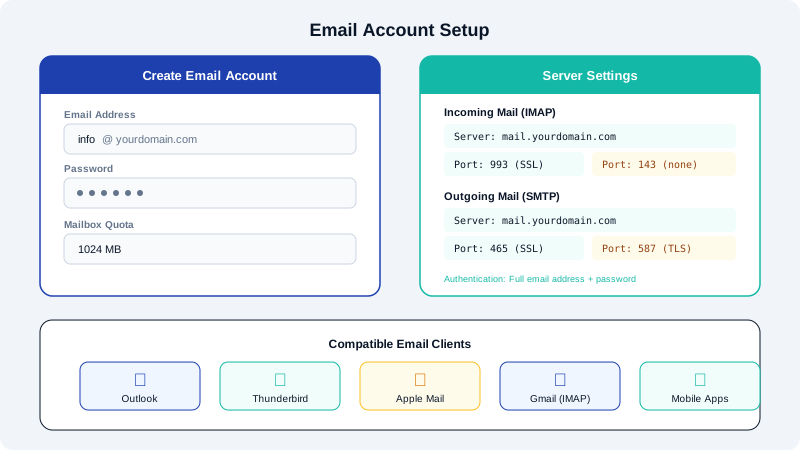
Creating a New Email Account
- Log in to your cPanel dashboard.
- Scroll to the Email section and click Email Accounts.
- Click the Create button on the right side of the page.
- Fill in the following fields:
- Domain: Select the domain you want the email account associated with.
- Username: Enter the desired email prefix (e.g.,
info,support,john). - Password: Enter a strong password or click Generate to have cPanel create one for you. Aim for at least 12 characters with a mix of uppercase, lowercase, numbers, and symbols.
- Storage Space: Set the mailbox quota. You can assign a specific amount in megabytes or select Unlimited (limited by your overall hosting plan storage).
- Click Create to finish.
Your new email address (e.g., info@yourdomain.com) is now active and ready to use.
Accessing Webmail
You can immediately check your new email through webmail:
- Go to https://yourdomain.com/webmail or https://yourdomain.com:2096.
- Enter the full email address and the password you just created.
- Choose a webmail client. We recommend Roundcube for its clean interface and ease of use.
Setting Mailbox Quotas
Mailbox quotas prevent any single account from consuming all available disk space. To modify a quota after creation:
- Go to Email Accounts in cPanel.
- Click Manage next to the email account you want to edit.
- Update the Allocated Storage Space field and click Update Email Settings.
Configuring Email on Your Devices
To use your new email account in a mail application such as Outlook, Thunderbird, or your phone's built-in mail app, you will need these settings:
| Setting | Value |
|---|---|
| Incoming Server | mail.yourdomain.com |
| IMAP Port | 993 (SSL/TLS) |
| POP3 Port | 995 (SSL/TLS) |
| Outgoing Server | mail.yourdomain.com |
| SMTP Port | 465 (SSL/TLS) |
| Username | Your full email address |
| Password | The password you set |
We recommend using IMAP over POP3, as IMAP keeps your email synchronized across all devices.
Managing Existing Accounts
From the Email Accounts page, you can change passwords, adjust quotas, suspend accounts, or delete accounts that are no longer needed. Deleting an account permanently removes all messages stored in that mailbox, so be sure to back up any important emails before doing so.
If you need help with email configuration, our support team is available around the clock.