Setting Up Cron Jobs in cPanel
A cron job is a scheduled task that runs automatically on the server at a time or interval you define. Common uses include sending scheduled emails, generating reports, clearing caches, backing up data, or running maintenance scripts. CyclebreezeHost's cPanel includes a built-in Cron Jobs tool that makes it easy to create and manage these tasks without editing system files.
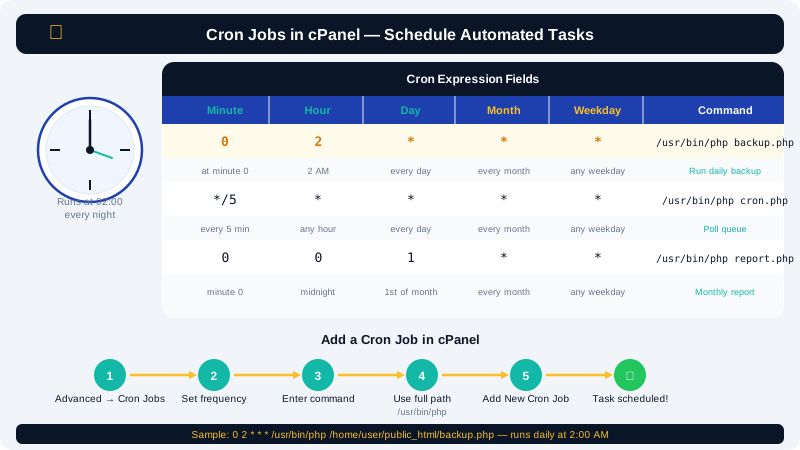
Understanding Cron Syntax
A cron schedule is defined by five fields that specify when the task should run:
* * * * * command
│ │ │ │ │
│ │ │ │ └─ Day of week (0–7, where 0 and 7 = Sunday)
│ │ │ └─── Month (1–12)
│ │ └───── Day of month (1–31)
│ └─────── Hour (0–23)
└───────── Minute (0–59)
An asterisk (*) means "every" — so * * * * * runs every minute. You can also use:
- A number:
30means "at the 30th" - A comma-separated list:
1,15means "on the 1st and 15th" - A range:
1-5means "from 1 through 5" - A step value:
*/15means "every 15 units"
Common Schedule Examples
| Schedule | Cron Expression |
|---|---|
| Every minute | * * * * * |
| Every 15 minutes | */15 * * * * |
| Every hour (on the hour) | 0 * * * * |
| Every day at midnight | 0 0 * * * |
| Every Monday at 8 AM | 0 8 * * 1 |
| First of every month | 0 0 1 * * |
Creating a Cron Job
- Log in to the Client Area at https://clients.cyclebreezehost.com and open cPanel.
- In the Advanced section, click Cron Jobs.
- Set the Email field at the top of the page if you want cron output sent to you by email. Leave it blank to suppress emails (recommended once your jobs are confirmed working).
- Under Add New Cron Job, either:
- Use the Common Settings dropdown to pick a preset interval, or
- Enter values manually in the Minute, Hour, Day, Month, and Weekday fields.
- In the Command field, enter the full command to run (see the section below).
- Click Add New Cron Job.
Writing the Command
Always use the full path to the PHP binary or script interpreter rather than a relative path. For PHP scripts, the typical format is:
/usr/local/bin/php /home/username/public_html/cron/myscript.php
Replace username with your actual cPanel username and adjust the path to match your script's location.
For a URL-based trigger (less efficient, but sometimes used with WordPress), you can use curl:
/usr/bin/curl -s https://yourdomain.com/cron-trigger-url > /dev/null 2>&1
The > /dev/null 2>&1 part suppresses all output so you do not receive an email on every run.
WordPress WP-Cron Replacement
WordPress has a built-in pseudo-cron system that only fires when a visitor loads a page. For more reliable scheduling, disable WP-Cron and use a real cron job instead:
- Add
define('DISABLE_WP_CRON', true);to yourwp-config.php. - Create a cron job in cPanel that runs every 5–15 minutes:
/usr/local/bin/php /home/username/public_html/wp-cron.php > /dev/null 2>&1
Viewing and Editing Cron Jobs
All your existing cron jobs are listed in a table at the bottom of the Cron Jobs page in cPanel. From there you can:
- Edit a job by clicking Edit next to it, updating the fields, and clicking Edit Line.
- Delete a job by clicking Delete and confirming.
Troubleshooting
- Script not running: Double-check that the file path is correct and the script is executable. You can test the command by running it in the cPanel Terminal.
- Emails not arriving: Check that the email address in the cron email field is valid. Also check your spam folder.
- Errors in output: Enable output temporarily by removing
> /dev/null 2>&1so the cron emails you the full error message. - PHP version mismatch: If your script requires a specific PHP version, use the full path to that version's binary (for example,
/usr/local/bin/php83).
If you need help identifying the correct PHP binary path for your server, contact CyclebreezeHost support at info@cyclebreezehost.com or open a ticket in the Client Area.