Setting Up Email Accounts in cPanel
Every CyclebreezeHost hosting plan includes email hosting. You can create email addresses like info@yourdomain.com and access them through webmail or any email client.
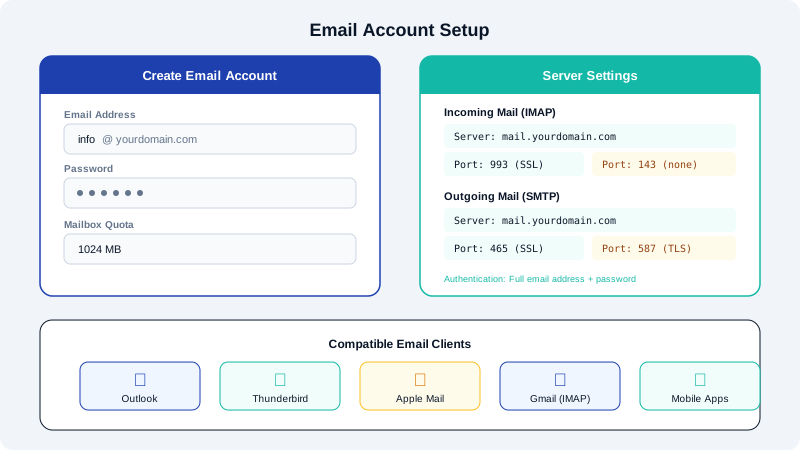
Creating an Email Account
- Log into cPanel.
- Click Email Accounts under the Email section.
- Click Create.
- Enter the username (the part before the @).
- Select the domain.
- Set a strong password.
- Set the mailbox quota (or leave it as unlimited).
- Click Create.
Accessing Email
Webmail
Access webmail at https://yourdomain.com/webmail or through cPanel by clicking Email Accounts and then Check Email next to the account. CyclebreezeHost includes Roundcube as the default webmail client.
Email Client Configuration
To set up your email in Outlook, Thunderbird, Apple Mail, or a mobile device:
IMAP Settings (recommended):
- Incoming server:
mail.yourdomain.com - Port: 993 (SSL) or 143 (STARTTLS)
- Username: Your full email address
- Password: The password you set in cPanel
SMTP Settings:
- Outgoing server:
mail.yourdomain.com - Port: 465 (SSL) or 587 (STARTTLS)
- Authentication: Required
- Username: Your full email address
- Password: Same as incoming
POP3 Settings:
- Incoming server:
mail.yourdomain.com - Port: 995 (SSL) or 110 (STARTTLS)
We recommend IMAP over POP3 because IMAP keeps your email synchronized across all devices.
Email Forwarders
To forward email from one address to another:
- In cPanel, click Forwarders under the Email section.
- Click Add Forwarder.
- Enter the email address to forward from and the destination address.
- Click Add Forwarder.
Tips
- Always use SSL/TLS ports for secure email communication.
- Set up SPF, DKIM, and DMARC records to improve email deliverability and prevent spoofing.
- Use strong, unique passwords for each email account.