Setting Up Leech Protection
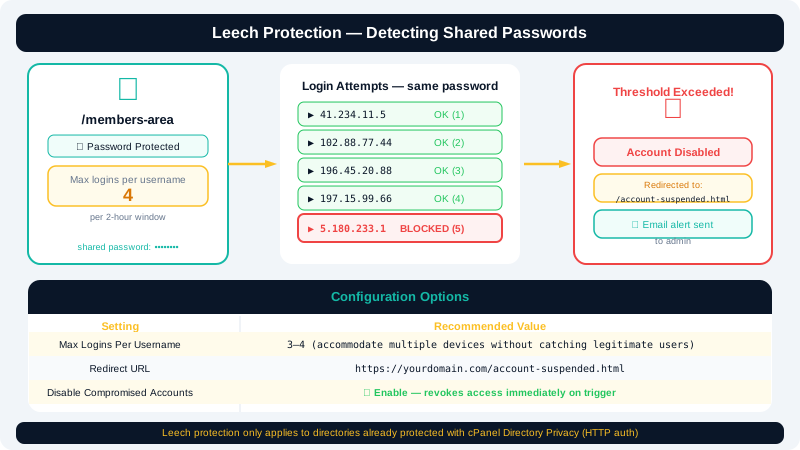
Leech protection is a cPanel feature designed for sites that use password-protected directories. When a user shares their login credentials and too many distinct IP addresses authenticate with the same username within a set time period, cPanel can automatically disable that account and redirect the session — stopping the "leeching" of your protected content before it becomes a bigger problem.
Prerequisites
Leech protection works only on directories that already have Password Protection (HTTP authentication) enabled. If you have not yet password-protected the directory you want to guard, do that first:
- In cPanel, go to Files → Directory Privacy.
- Select the folder, enable Password protect this directory, and create at least one authorised user.
Once the directory is password-protected, you can layer leech protection on top of it.
Enabling Leech Protection
- Log in to cPanel at
clients.cyclebreezehost.com. - Go to Security → Leech Protection.
- Navigate to the directory you want to protect using the folder tree and click its name to open the settings panel.
Configuring the Options
Maximum Logins Per Username
Enter the number of distinct IP addresses allowed to log in with a single username within a two-hour window. A value of 2 or 3 works well for personal or small-team areas. Anything above that threshold triggers the protection action.
Redirect URL
Enter the URL users will be sent to when their account is flagged. A dedicated page explaining the policy works best — for example:
https://www.yourdomain.com/account-suspended.html
Send Email Alert
Check Send Email Alert and supply an email address (e.g., info@cyclebreezehost.com or your own admin address) to receive a notification each time leech protection fires. This is strongly recommended so you know which accounts are being shared.
Disable Compromised Accounts
Check Disable Compromised Accounts to automatically revoke access for any username that exceeds the threshold. The user receives the redirect and cannot log in again until you re-enable their account.
- Once all options are set, click Enable to activate leech protection on the selected directory.
Managing Affected Accounts
When an account is disabled by leech protection:
- In cPanel, return to Security → Leech Protection and navigate to the same directory.
- Look for the disabled username in the account list.
- Click Enable next to the username to restore access.
Communicate with the account holder about the policy before reinstating them to prevent repeat incidents.
Removing Leech Protection
- Navigate to the protected directory in Security → Leech Protection.
- Click Disable to remove the leech protection rules from that directory.
Password protection on the directory itself remains unaffected — only the leech detection layer is removed.
Limitations to Be Aware Of
| Limitation | Detail |
|---|---|
| Relies on HTTP auth | Only works on directories protected with cPanel's Directory Privacy tool, not application-level logins (e.g., WordPress login page) |
| Two-hour window | The IP count resets every two hours, so low-volume sharing may not be caught immediately |
| Dynamic IPs | Legitimate users on mobile networks may rotate IPs; set the threshold high enough to accommodate this |
| No per-user logging | cPanel does not show a list of offending IPs — only that the threshold was exceeded |
Best Practices
- Set the maximum logins to a value slightly above the realistic number of devices one person uses (3–4 is common).
- Always enable email alerts so you are aware of incidents in real time.
- Combine leech protection with HTTPS to ensure credentials are encrypted in transit — your CyclebreezeHost account includes free SSL via AutoSSL.
For help configuring directory protection or investigating a specific account, contact CyclebreezeHost support at info@cyclebreezehost.com. The support team is available 24/7.