Setting Up MX Records for Google Workspace
If you have signed up for Google Workspace (formerly G Suite) and want to use your CyclebreezeHost domain with Gmail for business, you need to update your domain's MX (Mail Exchanger) records. This tells the internet where to deliver email for your domain. This guide walks you through the changes in cPanel.
Before You Begin
- Complete the Google Workspace sign-up at
workspace.google.comand verify ownership of your domain using the method Google provides (usually aTXTrecord orCNAME). - Have your cPanel login details ready.
- Changes to MX records typically propagate within 1–4 hours, but may take up to 24 hours.
Step 1 — Log In to cPanel
- Log in to cPanel at
https://yourdomain.com/cpanelor through the Client Area at https://clients.cyclebreezehost.com. - In the Email section, click Email Routing.
- Ensure the routing is set to Remote Mail Exchanger (since Google Workspace will handle your email). Select this option and click Change.
Step 2 — Remove Existing MX Records
- In cPanel, go to the Domains section and click Zone Editor.
- Click Manage next to your domain.
- Filter the records by type MX.
- Delete all existing MX records (these point to CyclebreezeHost's mail servers by default).
Step 3 — Add Google Workspace MX Records
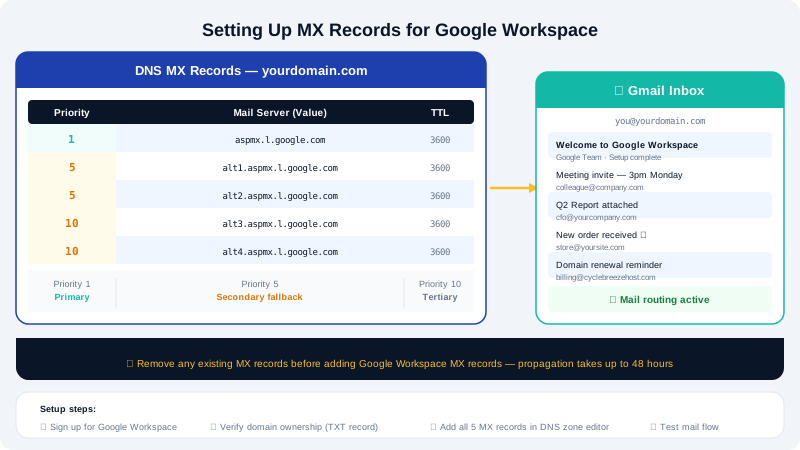
Click Add Record and add each of the following MX records. Set the TTL to 3600 for each.
| Priority | Mail Server |
|---|---|
1 | ASPMX.L.GOOGLE.COM |
5 | ALT1.ASPMX.L.GOOGLE.COM |
5 | ALT2.ASPMX.L.GOOGLE.COM |
10 | ALT3.ASPMX.L.GOOGLE.COM |
10 | ALT4.ASPMX.L.GOOGLE.COM |
For each record:
- Set Name to your domain name (e.g.
yourdomain.com.— note the trailing dot). - Set TTL to
3600. - Set Priority to the value in the table above.
- Set Destination to the mail server value.
- Click Add Record.
Repeat for all five entries.
Step 4 — Add SPF and DKIM Records (Recommended)
Google Workspace requires an SPF record and recommends DKIM to reduce the chance of your emails being marked as spam.
SPF record (TXT):
- In the Zone Editor, click Add Record and choose type TXT.
- Set Name to
yourdomain.com. - Set Value to:
v=spf1 include:_spf.google.com ~all - Click Add Record.
DKIM record:
- In the Google Workspace Admin console, go to Apps > Google Workspace > Gmail > Authenticate email.
- Generate a DKIM key and copy the TXT record name and value Google provides.
- Add a new TXT record in cPanel Zone Editor with those values.
Step 5 — Verify in Google Workspace
- Return to the Google Workspace Admin console.
- Go to Domains > Manage domains and click Set up Google MX records.
- Google will check that the records are correctly published.
Keeping Webmail Access
After switching to Google Workspace, webmail at mail.yourdomain.com will no longer deliver new mail — all email goes to Google. Existing mail in CyclebreezeHost mailboxes will remain until those mailboxes are deleted. Advise users to migrate any saved mail before the cutover.
Need Help?
Contact the CyclebreezeHost support team at info@cyclebreezehost.com or open a support ticket in the Client Area — we are available 24/7.