Setting Up Private Nameservers
Private (or branded) nameservers let your clients point their domains to ns1.yourbrand.com and ns2.yourbrand.com instead of CyclebreezeHost's default nameservers. This is a key part of white-labelling your hosting business — your brand appears at every stage of the domain setup, and your clients never see any reference to your upstream provider.
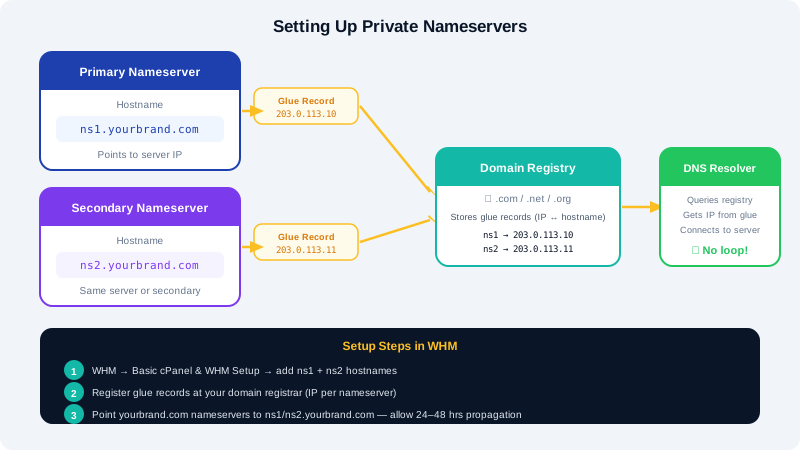
How Private Nameservers Work
A private nameserver is a hostname that resolves to an IP address on your reseller server. When a client sets their domain's nameservers to ns1.yourbrand.com, DNS queries for their domain are answered by your server. Behind the scenes, ns1.yourbrand.com is just an alias (a glue record) pointing to the same IP as your server.
Prerequisites
- Your reseller server's IP address (from your CyclebreezeHost welcome email or Client Area)
- Access to the domain you want to use for your brand (e.g.
yourbrand.com) — it must be registered and you must be able to edit its DNS or nameserver settings at the registrar - WHM access at
https://yourserver:2087
Step 1 — Register the Nameserver Hostnames in WHM
- Log in to WHM.
- Search for
Nameserver Configurationor navigate to Server Configuration > Nameserver Configuration. - Under Add a New Nameserver, enter:
- Nameserver 1:
ns1.yourbrand.com - Nameserver 2:
ns2.yourbrand.com
- Nameserver 1:
- For each one, confirm the IP address is set to your server's IP.
- Click Save.
WHM will also create DNS zone entries for these hostnames automatically.
Step 2 — Create Glue Records at Your Domain Registrar
Glue records (also called nameserver host records or child nameservers) tell the domain registry where ns1.yourbrand.com and ns2.yourbrand.com live. This step is done at wherever yourbrand.com is registered.
- Log in to your domain registrar's control panel.
- Find the option labelled Host Records, Child Nameservers, Glue Records, or Register Nameservers — the exact label varies by registrar.
- Add two entries:
| Hostname | IP Address |
|---|---|
ns1.yourbrand.com | Your server IP |
ns2.yourbrand.com | Your server IP |
- Save the records. DNS propagation typically takes up to 24 hours, but is often much faster.
Note: If your reseller plan uses two different IPs (one for each nameserver), use the correct IP for each. Most shared reseller environments use the same IP for both — that is normal and fully functional.
Step 3 — Update the Default Nameservers in WHM
Once glue records are live, set WHM to use your private nameservers when creating new client accounts.
- In WHM, navigate to Server Configuration > Basic cPanel & WHM Setup.
- Scroll to the Nameservers section.
- Enter
ns1.yourbrand.comandns2.yourbrand.comin the primary and secondary nameserver fields. - Click Save.
From this point, every new cPanel account you create will have these nameservers assigned automatically.
Step 4 — Instruct Clients to Update Their Domain Nameservers
When a client registers or transfers a domain, they need to point it to your nameservers. Provide them with:
- Nameserver 1:
ns1.yourbrand.com - Nameserver 2:
ns2.yourbrand.com
They enter these values in their domain registrar's control panel under Manage Nameservers or DNS Settings. Once propagated, their domain will resolve through your server.
Verifying Your Nameservers Are Working
Use a DNS lookup tool (such as dig or an online tool like dnschecker.org) to confirm that ns1.yourbrand.com resolves to your server IP:
dig ns1.yourbrand.com
The result should show your server's IP address. If it returns no result after 24 hours, double-check the glue records at your registrar.
Troubleshooting
Nameservers not resolving after 24 hours?
- Verify the glue records were saved correctly at the registrar.
- Confirm the IP address matches your actual server IP.
WHM says the nameserver hostname already exists?
- The hostname may already be registered under a different reseller or account. Contact CyclebreezeHost support to investigate.
Need help setting up your nameservers? CyclebreezeHost support is available 24/7 at info@cyclebreezehost.com or via https://clients.cyclebreezehost.com.