Setting Up Two-Factor Authentication
Two-factor authentication (2FA) adds a second layer of verification when you log in to your accounts. Instead of relying solely on a password, 2FA requires you to provide a temporary code generated by an app on your mobile device. Even if someone obtains your password, they cannot access your account without the second factor.
Enabling 2FA on your hosting and client area accounts is one of the most effective steps you can take to protect your online presence.
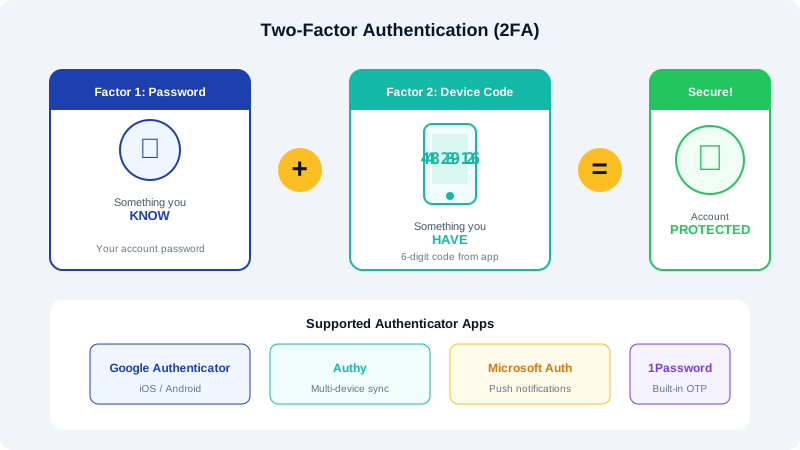
Recommended Authenticator Apps
Before setting up 2FA, install one of the following authenticator apps on your smartphone:
- Google Authenticator (iOS and Android) -- simple, widely supported, and free.
- Authy (iOS and Android) -- offers encrypted cloud backups and multi-device sync.
- Microsoft Authenticator (iOS and Android) -- a solid alternative with push notification support.
Any TOTP-compatible authenticator app will work with CyclebreezeHost services.
Enabling 2FA on cPanel
- Log in to your cPanel account.
- Navigate to the Security section and click Two-Factor Authentication.
- Click Set Up Two-Factor Authentication.
- cPanel will display a QR code on screen. Open your authenticator app and scan the QR code to add the account.
- Enter the six-digit code displayed in your authenticator app to verify the connection.
- Click Configure Two-Factor Authentication to save.
From this point forward, each time you log in to cPanel you will be prompted to enter a code from your authenticator app after your password.
Enabling 2FA on the WHMCS Client Area
- Log in to the CyclebreezeHost Client Area at
https://clients.cyclebreezehost.com. - Click your name in the top-right corner and select Security Settings.
- Under Two-Factor Authentication, click Click here to Enable.
- Select Time Based Tokens as the authentication method.
- Scan the QR code with your authenticator app.
- Enter the generated code and click Activate.
Your client area account is now protected with 2FA. You will need to provide a code each time you sign in.
Saving Backup Codes
When you enable 2FA, you may be provided with a set of backup codes. These are single-use codes that allow you to log in if you lose access to your authenticator app. Store these codes in a secure location such as a password manager or a printed copy kept in a safe place. Each backup code can only be used once.
If your authenticator app does not offer cloud backup (such as Google Authenticator), losing your device without backup codes means you will need to contact our support team to regain access.
Why 2FA Matters
Passwords alone are vulnerable to phishing attacks, data breaches, and brute-force attempts. Two-factor authentication drastically reduces the risk of unauthorized access because an attacker would need both your password and physical access to your mobile device. For anyone managing a website, email, or client data, 2FA is not optional -- it is essential.
If you need assistance setting up two-factor authentication, our support team is available around the clock to help.