Transferring Accounts into Your Reseller Plan
If you are migrating clients from another hosting provider — or consolidating accounts from a different server — WHM includes built-in tools to transfer cPanel accounts with minimal disruption. This article explains the full transfer process, what gets migrated, and how to verify a successful move.
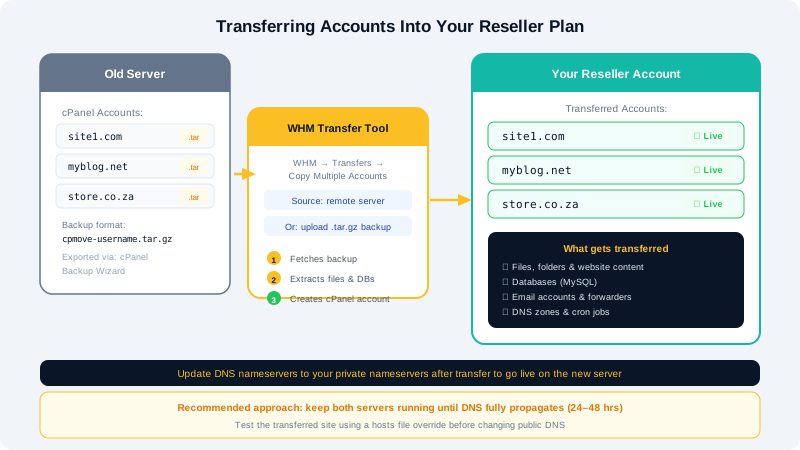
What Gets Transferred
A cPanel account transfer copies:
- All website files (public and private)
- MySQL/MariaDB databases and database users
- Email accounts, mailboxes, forwarders, and filters
- DNS zones
- Cron jobs
- SSL certificates (if present and transferable)
- Subdomains, addon domains, and parked domains
- FTP accounts
Transfer Methods in WHM
WHM provides two main transfer methods:
| Method | When to Use |
|---|---|
| Copy an Account from Another Server | The source server has WHM/cPanel and you have root or reseller SSH/API access |
| Restore from a cPanel Backup File | You have a .tar.gz backup file generated by the source server's cPanel |
Method 1 — Transfer Directly from Another cPanel Server
- Log in to WHM on your CyclebreezeHost reseller account at
https://yourserver:2087. - Navigate to Transfers > Copy an Account from Another Server.
- Enter the source server details:
- Remote Server Address — Hostname or IP of the source server
- Remote Server Port — Usually
22(SSH) - Remote Server Username —
rootor a reseller-level username - Remote Server Password — Or paste an SSH key
- Click Fetch Account List to retrieve a list of accounts on the source server.
- Select the accounts you want to transfer.
- Choose whether to Overwrite existing accounts if any domains already exist on your server.
- Click Copy to begin the transfer.
WHM will display a live log of the transfer progress. Large accounts with many files may take several minutes.
Method 2 — Restore from a cPanel Backup File
Use this method when you have a full cPanel backup .tar.gz file from the previous host.
Generate the Backup on the Source Server
- Log in to the client's cPanel on the source server.
- Go to Backup > Download a Full Account Backup.
- Download the
.tar.gzfile to your computer.
Restore the Backup in WHM
- In WHM, navigate to Transfers > Restore a Full Backup/cpmove File.
- Upload the
.tar.gzfile using the file picker, or place it in/homeon your server via SFTP and select it from the list. - Select the account to restore and confirm the target username and domain.
- Click Restore.
Alternatively, if you have JetBackup enabled on your CyclebreezeHost reseller plan, you can use the JetBackup interface in WHM to restore accounts directly from backup snapshots.
After the Transfer — Verification Checklist
Before updating DNS and going live, verify the account is working correctly:
- Preview the site via hosts file — Add a temporary entry to your local
hostsfile pointing the domain to your new server IP. This lets you browse the site before DNS changes propagate. - Test email — Send a test message to and from one of the client's email accounts.
- Check databases — Log in to phpMyAdmin from within cPanel and confirm tables and data are intact.
- Test forms and dynamic functionality — If the site uses PHP scripts or CMSs like WordPress, log in and check that pages load and forms submit correctly.
- Verify SSL — Confirm AutoSSL has issued or can issue a certificate for the domain on the new server.
Updating DNS to Go Live
Once you are satisfied the transfer is complete and working:
- Ask the client to update their domain's nameservers to your private nameservers (e.g.,
ns1.yourbrand.com), or update the domain's A record to point to your new server IP. - Allow up to 24–48 hours for full DNS propagation worldwide, though most visitors will see the new server much sooner.
- Leave the old server account intact for a few days as a safety net before terminating it.
Troubleshooting Common Transfer Issues
Transfer fails with a permissions error: Verify the remote credentials (username/password or SSH key) are correct and that the remote account has the necessary access level.
Missing files after transfer: Check the transfer log in WHM for error lines. Some files in unusual locations may not be copied. Manually transfer these via SFTP.
Database import errors:
If a database name conflicts with an existing one on your server, WHM will rename it. Verify the database name in the WordPress wp-config.php or equivalent config file and update it if necessary.
For help with large or complex migrations, contact CyclebreezeHost support 24/7 at info@cyclebreezehost.com or open a ticket at https://clients.cyclebreezehost.com.