Transferring Files to Your VPS with SFTP and SCP
Whether you are deploying a website, uploading configuration files, or downloading log files for review, securely transferring files to and from your VPS is a routine task. SFTP (SSH File Transfer Protocol) and SCP (Secure Copy Protocol) both use the same SSH connection as your terminal, so no additional ports or software need to be opened on the server.
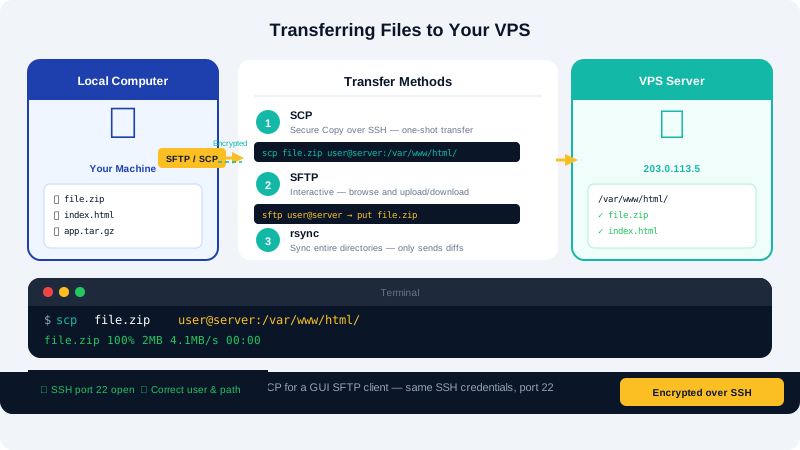
Which Tool Should You Use?
| Tool | Best For |
|---|---|
| SFTP (command-line) | Interactive browsing — navigating directories, uploading, downloading |
| SCP (command-line) | Quick one-off transfers when you know the exact source and destination paths |
| FileZilla / Cyberduck | GUI-based transfers, drag-and-drop, good for non-technical users |
All three methods encrypt the data in transit using SSH.
Method 1: SCP (Secure Copy)
scp works similarly to the standard cp command but copies files over SSH.
Upload a file to your VPS:
scp /path/to/local/file.txt root@your-server-ip:/var/www/html/
Upload an entire directory (recursive):
scp -r /path/to/local/folder root@your-server-ip:/var/www/html/
Download a file from your VPS:
scp root@your-server-ip:/var/log/nginx/access.log /path/to/local/
Using a custom SSH port (if your server runs SSH on a non-default port):
scp -P 2222 /path/to/local/file.txt root@your-server-ip:/var/www/html/
Note the capital -P flag — scp uses uppercase while ssh uses lowercase -p.
Method 2: SFTP (Interactive Session)
sftp opens an interactive shell where you can browse both local and remote file systems before transferring.
Connect to your server:
sftp root@your-server-ip
Once connected, you will see an sftp> prompt. Useful commands inside the session:
| Command | Action |
|---|---|
ls | List remote directory |
lls | List local directory |
pwd | Show current remote path |
lpwd | Show current local path |
cd /var/www | Change remote directory |
lcd ~/Downloads | Change local directory |
put file.txt | Upload file to current remote directory |
put -r folder/ | Upload directory recursively |
get remote-file.txt | Download file to current local directory |
get -r remote-folder/ | Download directory recursively |
mkdir backups | Create remote directory |
exit | Close the session |
Method 3: FileZilla (GUI)
FileZilla is a free, cross-platform graphical FTP/SFTP client.
- Download FileZilla from filezilla-project.org and install it.
- Open the Site Manager (File > Site Manager).
- Click New Site and set:
- Protocol: SFTP – SSH File Transfer Protocol
- Host: your server IP
- Port: 22 (or your custom SSH port)
- Logon Type: Normal
- User: root (or your sudo user)
- Password: your SSH password
- If you use an SSH key, set Logon Type to Key file and browse to your private key file.
- Click Connect.
You can now drag files between your local machine (left panel) and the server (right panel).
Using SSH Keys Instead of Passwords
Authenticating with an SSH key is more secure than a password. If you have already configured key-based SSH login, all three tools above will use your key automatically when connecting to the same host.
To specify a key file explicitly with scp:
scp -i ~/.ssh/id_rsa /path/to/file.txt root@your-server-ip:/destination/
To specify a key file with sftp:
sftp -i ~/.ssh/id_rsa root@your-server-ip
Permissions After Upload
Files uploaded to your web root may need their permissions adjusted so the web server can read them:
chown -R www-data:www-data /var/www/html/
chmod -R 755 /var/www/html/
Replace www-data with nginx if you are running Nginx on some distributions.
Getting Help
If you are unable to connect, check that SSH is running on your server (systemctl status ssh) and that port 22 is open in your firewall. For further assistance, contact CyclebreezeHost support at info@cyclebreezehost.com or open a ticket in the Client Area at https://clients.cyclebreezehost.com.