Troubleshooting Application Startup Errors
When your Node.js or Python application on CyclebreezeHost refuses to start, or starts then immediately crashes, the key to resolving the problem is reading the right log files and systematically working through the most common causes. This article guides you through the process.
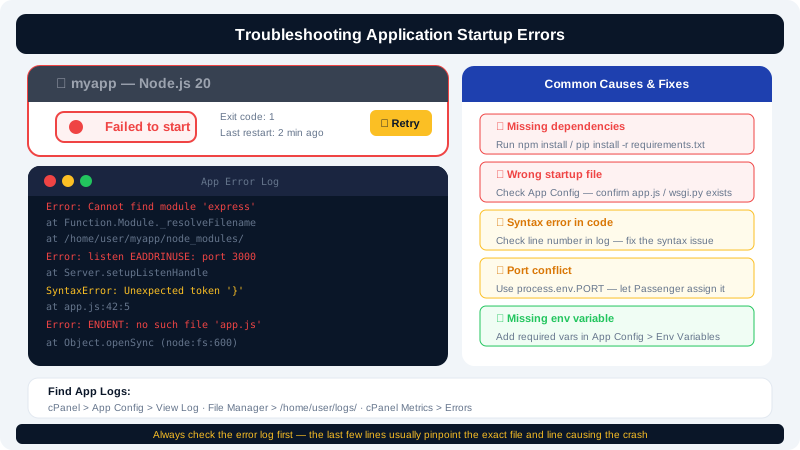
Step 1 — Check the Application Status
- Log in to cPanel and open Setup Node.js App or Setup Python App.
- Look at the status next to your application. A status of Error or no status change after clicking Start indicates a startup failure.
- Click the edit icon to open the full configuration.
Step 2 — Find and Read the Application Log
Each application writes startup errors and runtime output to a log file. The log path is shown in the application configuration panel — it typically looks like:
/home/yourusername/logs/myapp_error.log
To view the log:
- Open File Manager in cPanel.
- Navigate to
logs/in your home directory. - Right-click the log file and select View or Edit.
Alternatively, use cPanel's Terminal:
tail -n 50 ~/logs/myapp_error.log
The error message near the bottom of the log usually identifies the cause directly.
Common Errors and Fixes
Missing or Wrong Startup File
Error: Cannot find module 'app.js' or No such file or directory: 'app.py'
Fix: Verify the Application startup file field in cPanel matches the actual filename in your application root. Filenames are case-sensitive.
Dependencies Not Installed
Error (Node.js): Error: Cannot find module 'express'
Error (Python): ModuleNotFoundError: No module named 'flask'
Fix: Run npm install (Node.js) or pip install -r requirements.txt (Python) inside the application's virtual environment. See Installing Dependencies with npm and pip for instructions.
Wrong Application Root
Error: Files exist but Passenger cannot locate them.
Fix: In the application configuration, confirm the Application root field points to the folder that directly contains your startup file — not a parent directory or a subdirectory.
Port Binding Conflict
Error (Node.js): Error: listen EADDRINUSE
Fix: Your app must not hard-code a specific port. Passenger assigns the port via the PORT environment variable or a socket file. Update your code to:
const port = process.env.PORT || 3000;
app.listen(port);
Missing Environment Variable
Error: TypeError: Cannot read properties of undefined or KeyError in Python
Fix: A required environment variable is missing. Open the Environment Variables section of the app configuration and add the missing variable, then restart. See Managing Application Environment Variables.
Syntax Error in Application Code
Error: SyntaxError: Unexpected token (Node.js) or SyntaxError: invalid syntax (Python)
Fix: Test your code locally first. In cPanel Terminal, you can also run:
# Node.js
node --check app.js

# Python
python -m py_compile app.py
Fix the reported line and restart the application.
Virtual Environment Mismatch
Error (Python): Packages missing despite running pip install
Fix: You may have installed packages into the wrong virtual environment. Activate the exact virtual environment path shown in the Setup Python App interface before running pip.
Step 3 — Enable Development Mode for Verbose Output
If the log does not show enough detail:
- Open the application configuration.
- Change Application mode from
ProductiontoDevelopment. - Save and restart.
In development mode, Passenger passes full stack traces and verbose errors to the log and sometimes directly to the browser, making root causes easier to identify. Switch back to Production once the issue is resolved.
Step 4 — Verify File Permissions
Passenger must be able to read your application files. In cPanel File Manager, check that your application root and startup file have at least 644 permissions (files) and 755 (directories). Right-click any file and select Change Permissions to adjust.
Still Stuck?
Open a support ticket at https://clients.cyclebreezehost.com or email info@cyclebreezehost.com. Include the last 30–50 lines of your application error log and the configuration details (runtime version, startup file path, application root) so the support team can assist you quickly. CyclebreezeHost support is available 24/7.