Understanding the ModSecurity Web Application Firewall
ModSecurity is a web application firewall (WAF) that runs on CyclebreezeHost shared hosting servers. It monitors HTTP traffic in real time and blocks requests that match known attack patterns — before they ever reach your website's code. Understanding how it works helps you get the most from its protection and resolve false positives quickly.
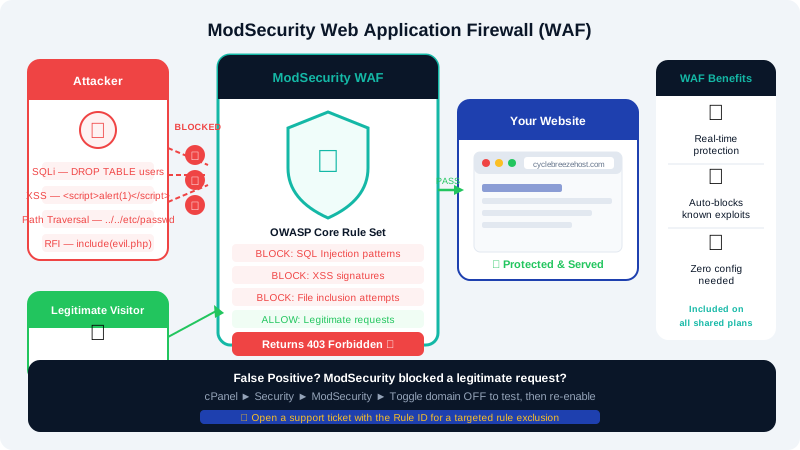
What ModSecurity Does
ModSecurity inspects every incoming HTTP request and applies a ruleset to look for suspicious patterns. It can block or log requests that match threats such as:
- SQL injection — attempts to manipulate your database through form inputs or URLs
- Cross-site scripting (XSS) — injecting malicious scripts into pages viewed by other users
- Remote file inclusion — trying to load external malicious files into your application
- Path traversal — requests designed to access files outside your web root
- Known exploit signatures — patterns matching published vulnerabilities in popular CMS platforms
When a request triggers a rule, ModSecurity returns a 403 Forbidden error to the visitor and logs the event.
Checking if ModSecurity Blocked a Request
If a legitimate action on your site returns a 403 Forbidden error unexpectedly, ModSecurity may have triggered on that request.
- Log in to cPanel.
- In the Logs section, click Errors or check Raw Access logs.
- Look for entries referencing
ModSecurityormod_securityaround the time of the blocked request. The log line will include the rule ID that triggered. - Alternatively, contact CyclebreezeHost support with the exact URL, form action, and time of the block — our team can review the firewall logs and identify the rule.
Handling False Positives
A false positive occurs when ModSecurity blocks a legitimate request — for example, a WordPress plugin that sends unusual query parameters, or a contact form that includes code-like content.
Option 1 — Disable ModSecurity for a specific domain (temporary troubleshooting):
- In cPanel, go to Security > ModSecurity.
- Find the domain you want to adjust and toggle it Off.
- Test the action that was previously blocked.
- Re-enable ModSecurity after testing.
Leaving ModSecurity disabled permanently is not recommended. Disable it only long enough to confirm the diagnosis, then re-enable it.
Option 2 — Request a rule exclusion via support:
If you have confirmed that a specific rule ID is blocking legitimate traffic, open a support ticket at https://clients.cyclebreezehost.com with:
- The domain name
- The rule ID from the log entry
- A description of the action that triggers the block
Our support team can add a targeted rule exclusion that preserves protection for all other traffic while allowing the specific request pattern through.
ModSecurity and WordPress
WordPress sites benefit greatly from ModSecurity but can occasionally trigger rules through:
- Security plugins that scan or modify request data
- Page builders that POST large blocks of HTML content
- E-commerce plugins with complex checkout flows
- REST API requests with JSON payloads containing code snippets
If you notice that a WordPress admin action is blocked, check the error log first and note the rule ID before disabling ModSecurity site-wide.
What ModSecurity Does Not Replace
ModSecurity is one layer of defence, not a complete security solution on its own.
| ModSecurity Handles | Still Needed Separately |
|---|---|
| Malicious HTTP requests | Strong passwords and 2FA |
| Known exploit signatures | Keeping CMS/plugins updated |
| XSS and SQL injection patterns | Regular malware scanning |
| Suspicious file access attempts | Correct file permissions |
For questions about your WAF configuration or persistent block issues, contact CyclebreezeHost support at info@cyclebreezehost.com or open a ticket at https://clients.cyclebreezehost.com. Our team is available 24/7.