Understanding Resource Usage and Account Limits
CyclebreezeHost shared hosting runs on CloudLinux with LVE (Lightweight Virtual Environment) technology. LVE assigns each hosting account its own resource container, so one busy website cannot degrade performance for others on the same server. This document explains what the limits mean, how to monitor your usage, and what to do if you approach the ceiling.
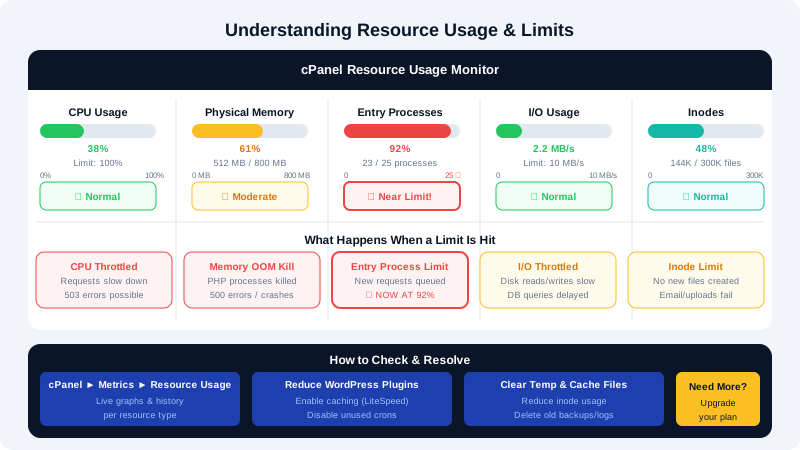
Resource Types Explained
CPU
Measured in percentage of a single CPU core. A limit of 100% means your account can use the equivalent of one full core continuously. Most websites use far less than this at any given moment — CPU spikes typically happen during heavy PHP processing, large database queries, or running composer/npm via SSH.
Physical Memory (RAM)
The amount of RAM your processes can use simultaneously. PHP scripts, background workers, and database connections all consume RAM. Hitting this limit causes new PHP processes to be killed, producing 500 Internal Server Error responses for visitors.
Entry Processes (EP)
The maximum number of concurrent PHP processes entering your account at once. This is often the first limit hit on a busy site. Each incoming HTTP request that runs PHP occupies one entry process slot for the duration of that request. If all slots are filled, additional visitors see a 503 Service Unavailable error until a slot frees up.
Number of Processes (NPROC)
The total number of concurrent processes your account can run, including shell commands, cron jobs, and PHP workers. Exceeding this limit prevents new processes from starting.
I/O (Input/Output)
The rate at which your account can read from and write to disk, measured in MB/s. Sites with heavy logging, frequent file writes, or large file serving can hit this limit.
Inodes
An inode is a filesystem entry for any file, directory, or symlink. Your account has an inode limit regardless of how much disk space those files occupy. Accounts with thousands of small files — for example, Node.js node_modules directories, or CMS installations with many plugins — can hit the inode limit before running out of disk space.
Monitoring Your Usage
In cPanel
- Log in to cPanel at
clients.cyclebreezehost.com. - Scroll to the Metrics section and click Resource Usage (or CPU and Concurrent Connection Usage).
- The dashboard shows current and historical usage for CPU, RAM, entry processes, and I/O with graphs by hour and day.
- The Fault column records how many requests were rejected due to a limit being reached.
In cPanel's Main Dashboard
The cPanel home page shows a summary bar for Disk Usage and Inodes in the statistics sidebar on the right.
Common Causes of Limit Overages
| Symptom | Likely cause |
|---|---|
| Frequent 503 errors | Entry process limit reached — too many concurrent visitors or slow PHP |
| 500 errors during specific operations | RAM limit hit by a memory-intensive script |
| Site slow but not erroring | Approaching CPU limit; PHP queuing |
| File uploads or installs failing | Inode limit reached |
| High I/O faults | Excessive logging, sessions written to disk, or large file transfers |
Reducing Resource Usage
CPU and RAM
- Enable LiteSpeed Cache (available via your LiteSpeed-powered server) to serve cached pages without invoking PHP.
- Install a caching plugin such as LSCache for WordPress to reduce PHP execution per page view.
- Identify slow database queries using a query monitor plugin or the Slow Query Log — optimise or add indexes.
- Increase PHP's
memory_limitonly if you have genuine headroom; raising it without addressing the root cause just defers the problem.
Entry Processes
- Enable full-page caching so most requests are served as static HTML, bypassing PHP entirely.
- Reduce the number of external HTTP requests your PHP code makes during page load.
- Check for comment spam, login bots, or crawlers hitting your site excessively — block them via Imunify360 or
.htaccess.
Inodes
- Remove unused applications, themes, and plugins installed via Softaculous.
- Delete old log files in
~/logs/and~/tmp/. - Avoid storing
node_modulesorvendordirectories inpublic_htmlunless required at runtime — build assets locally and upload only the compiled output. - Use File Manager or SSH to identify the largest inode consumers:
find ~/ -maxdepth 4 -type d | while read d; do echo "$(find "$d" | wc -l) $d"; done | sort -rn | head -20
When to Upgrade
If you consistently hit resource limits despite optimisation, your site has outgrown shared hosting. CyclebreezeHost offers Cloud VPS plans with dedicated CPU cores, RAM, and no entry-process limits. Upgrading gives you full control over server resources and removes the constraints of a shared environment.
To review your current resource usage trends or discuss a plan upgrade, contact CyclebreezeHost support at info@cyclebreezehost.com. The team is available 24/7.