Updating Domain Contact Info and ICANN Verification
Accurate WHOIS contact information is a requirement under ICANN policy, not just a recommendation. Outdated registrant details can cause you to miss critical renewal reminders, transfer notifications, and ICANN verification emails — any of which can result in your domain being suspended. This guide walks you through updating your contact details and completing ICANN verification.
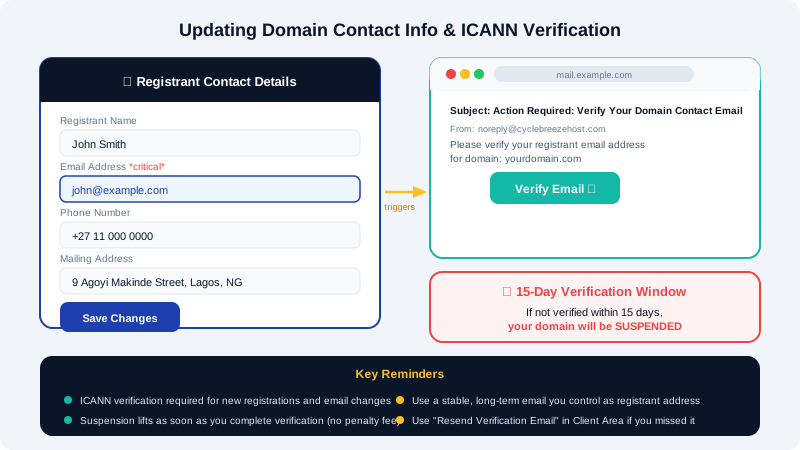
Why Contact Information Matters
Your domain's contact record (the registrant contact) includes:
- Name or organisation
- Mailing address
- Phone number
- Email address
The email address is especially critical. ICANN requires registrars to verify the registrant email address whenever it is added or changed. If verification is not completed within the required window, the domain can be suspended automatically by the registry.
How to Update Domain Contact Information
- Log in to the Client Area at https://clients.cyclebreezehost.com.
- Go to Domains > My Domains and click the domain you want to update.
- In the left-hand menu, click Contact Information or WHOIS Information.
- You will see fields for the Registrant, Admin, Technical, and Billing contacts. For most personal or small-business domains, all four contacts are the same person.
- Edit the fields you need to update. The registrant email is the most important — use a stable, long-term address you control.
- Click Save Changes.
Note: Some TLDs, particularly certain ccTLDs, impose restrictions on changing the registrant name or organisation (a "registrant change" may be treated as a transfer of ownership by the registry and require additional verification or fees). If you see a warning during the update, contact info@cyclebreezehost.com before proceeding.
WHOIS Privacy
If your domain is enrolled in WHOIS Privacy (also called Privacy Protection), your personal contact details are replaced with proxy information in the public WHOIS record. This does not exempt you from keeping accurate contact details on file — CyclebreezeHost still holds your real information and it must be correct. You can manage WHOIS Privacy from the same domain management page.
ICANN Verification Emails
Whenever you register a new domain or change the registrant email address, ICANN requires CyclebreezeHost to send a verification email to the registrant contact. You must click the verification link in that email within 15 days.
What happens if you do not verify?
- The registry will suspend the domain, making your website and email inaccessible.
- The suspension is lifted as soon as you complete verification — there is no penalty or fee, but the outage can last hours while DNS propagates after reinstatement.
Steps to complete ICANN verification
- Check the email inbox for the address you provided as the registrant contact.
- Look for an email from CyclebreezeHost or the domain registry with a subject line such as "Action Required: Verify Your Domain Contact Email".
- Click the verification link inside the email.
- A confirmation page will indicate that verification is complete.
What if you missed the verification email?
- Log in to the Client Area.
- Navigate to Domains > My Domains and open the affected domain.
- Look for a banner or notification indicating that verification is pending.
- Click Resend Verification Email to trigger a new message.
- If the option is not visible, contact info@cyclebreezehost.com and we will resend it manually.
Keeping Contact Details Current Over Time
| Trigger | Action Required |
|---|---|
| You change your email provider | Update registrant email + complete ICANN verification |
| You move or change your address | Update mailing address in Client Area |
| Business name change | Update organisation field (check for registry restrictions) |
| Phone number change | Update phone number in Client Area |
Checking your domain contact details once a year takes only a few minutes and prevents avoidable outages. If you manage multiple domains, the Client Area allows you to apply the same contact profile to all of them in one step.