Updating WordPress Core, Plugins, and Themes
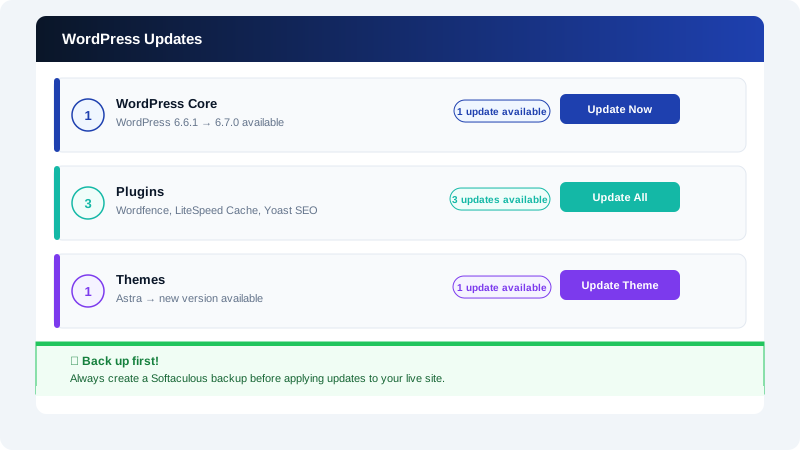
Keeping WordPress, its plugins, and its themes up to date is one of the most impactful things you can do for your site's security and stability. The majority of WordPress compromises exploit known vulnerabilities in outdated software — vulnerabilities that had already been patched in updates that were never applied.
Why Updates Matter
- Security patches close vulnerabilities before attackers can exploit them.
- Bug fixes prevent unexpected errors and broken functionality.
- Compatibility improvements ensure plugins and themes work correctly with the latest WordPress and PHP versions.
Before You Update: Create a Backup
Always back up your site before applying updates, especially WordPress core or major plugin upgrades.
Using Softaculous (recommended):
- Log in to cPanel and open Softaculous Apps Installer.
- Click WordPress, then Installations.
- Click the Backup icon next to your site.
- Choose a backup location and click Backup Installation.
Keep the backup until you have confirmed everything still works after updating.
Updating WordPress Core
- Log in to your dashboard at
yourdomain.com/wp-admin. - In the left menu, go to Dashboard > Updates.
- If a new version is available, you will see a notice. Click Update Now.
- WordPress downloads and applies the update automatically, then reloads. The process typically takes under a minute.
Minor updates (e.g. 6.5.1 → 6.5.2) are applied automatically by WordPress by default. Major updates (e.g. 6.5 → 6.6) require manual action unless you have explicitly enabled automatic major updates.
To enable automatic major updates, add the following line to wp-config.php:
define( 'WP_AUTO_UPDATE_CORE', true );
Updating Plugins
- Go to Dashboard > Updates or Plugins > Installed Plugins.
- Plugins with available updates are flagged in the list.
- From Dashboard > Updates, tick the checkboxes next to the plugins you want to update and click Update Plugins.
- From Plugins > Installed Plugins, click the Update now link that appears beneath each outdated plugin.
Tip: On a live site, update plugins one at a time if you are unsure of compatibility. This makes it far easier to identify which plugin caused a problem if something breaks.
Updating Themes
- Go to Dashboard > Updates or Appearance > Themes.
- Themes with updates available appear with an update notice.
- From Dashboard > Updates, select the themes to update and click Update Themes.
- From Appearance > Themes, hover over the theme thumbnail and click Update now if the option appears.
Note: If you have edited a theme's files directly, a theme update will overwrite those changes. Always use a child theme for customisations so that parent theme updates do not erase your work.
Enabling Automatic Updates
You can allow WordPress to update plugins and themes automatically without manual intervention.
- For plugins: In Plugins > Installed Plugins, click Enable auto-updates in the Auto-updates column for each plugin you trust.
- For themes: In Appearance > Themes, click a theme thumbnail, then click Enable auto-updates in the detail panel.
What to Do if an Update Breaks Your Site
| Symptom | First Step |
|---|---|
| White screen or fatal PHP error | Deactivate the last-updated plugin via Plugins > Installed Plugins |
| Broken layout or styling | Switch to a default theme temporarily (e.g. Twenty Twenty-Four) |
| Site completely inaccessible | Restore from the Softaculous backup you created before updating |
If you need to roll back a plugin to a previous version, download an older release from the wordpress.org plugin page and upload it via Plugins > Add New Plugin > Upload Plugin.
For help with a failed update, contact CyclebreezeHost support at info@cyclebreezehost.com — our team is available 24/7.