Updating Your Account Profile and Contacts
Your CyclebreezeHost Client Area account holds the contact details we use to reach you for billing reminders, renewal notices, security alerts, and support communications. Keeping this information current ensures you never miss a critical message — including an invoice due date that could lead to a service suspension if missed.
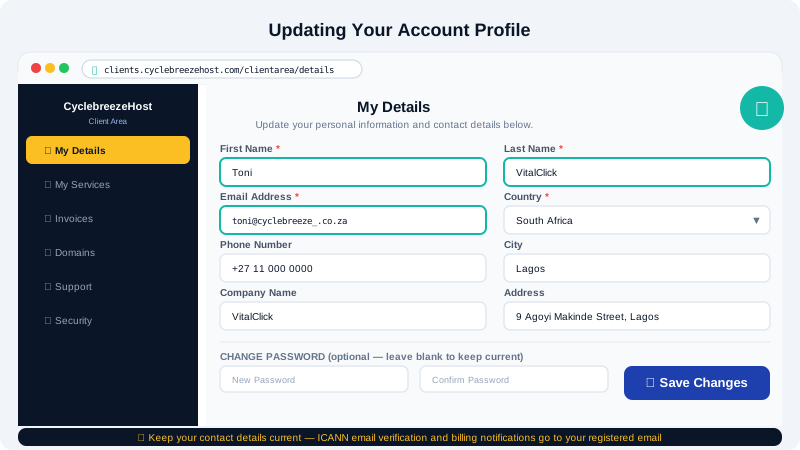
Updating Your Primary Profile
Your primary profile is the main account holder's information. To update it:
-
Log in to your Client Area at clients.cyclebreezehost.com.
-
Click your name or account icon in the top-right corner.
-
Select Edit Account Details from the dropdown menu.
-
Update any of the following fields as needed:
- First Name and Last Name
- Email Address — this is your login email and the address used for all account notifications
- Phone Number
- Company Name (optional)
- Address, City, State/Region, Postcode, and Country
-
Click Save Changes at the bottom of the form.
Important: If you change your email address, a confirmation message may be sent to your new address. Check your inbox and confirm the change before logging out.
Changing Your Password
To update your Client Area login password:
- From the account dropdown in the top-right, select Change Password.
- Enter your current password, then your new password twice.
- Click Save Changes.
Choose a strong, unique password and store it in a password manager. Avoid reusing passwords from other services.
Managing Sub-Contacts
Sub-contacts allow you to give other people — such as a developer, billing administrator, or technical team member — specific access to your account without sharing your own login credentials.
Adding a Sub-Contact
- In your Client Area, click your account name in the top-right and select Contacts/Sub-Accounts.
- Click Add New Contact.
- Fill in the contact's details: name, email address, and phone number.
- Under Email Preferences, tick which notifications this contact should receive:
- General Emails — general account communications
- Product Emails — service activation, upgrade confirmations
- Domain Emails — domain registration, transfer, and expiry notices
- Invoice Emails — billing and payment notifications
- Support Emails — ticket updates and replies
- To grant login access, scroll to Sub-Account Access and tick Activate Sub-Account. Set a password for the sub-account and select their permission level.
- Click Save Changes.
Sub-Account Permission Levels
| Permission | Description |
|---|---|
| View & Pay Invoices | Can view and pay outstanding invoices |
| View & Accept Quotes | Can view and accept quotes |
| View & Open Support Tickets | Can read and reply to support tickets |
| View & Manage Products | Can view service details and request upgrades |
| Manage Domain Settings | Can update nameservers and DNS records |
| View & Manage Contacts | Can add or edit other sub-contacts |
Mix and match permissions to give each person only the access they need.
Editing or Removing a Sub-Contact
- Go to Contacts/Sub-Accounts.
- Click the contact's name.
- Update details and permissions, then click Save Changes, or click Delete Contact to remove them entirely.
Updating Billing Information
To update your payment method (credit card or other details):
- In your Client Area, go to Billing > Payment Methods.
- Click Add New Payment Method to add a new card or account.
- To remove an old method, click Delete next to it.
Keeping an active payment method on file allows invoices to be paid automatically on their due date, preventing service interruption.
Need Help?
If you are locked out of your account or cannot update your email address because you no longer have access to the old one, contact our support team 24/7 at info@cyclebreezehost.com or open a ticket at clients.cyclebreezehost.com. We will verify your identity and assist with the update.