Updating Your Payment Details
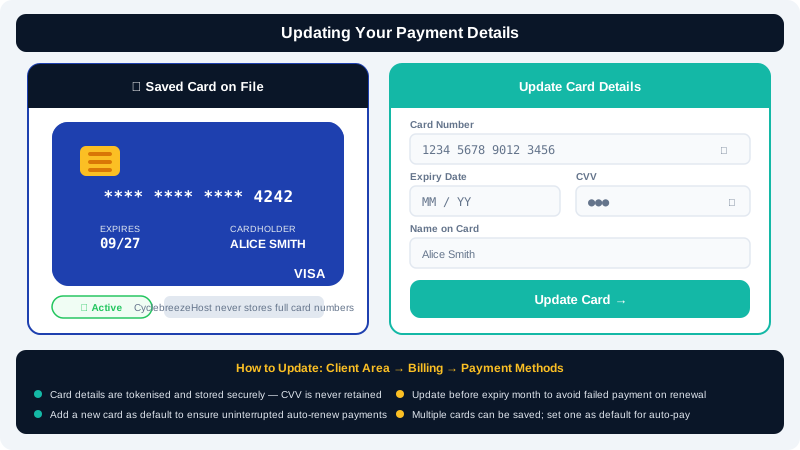
Keeping your payment details current ensures your services renew without interruption and avoids failed payment notices. CyclebreezeHost processes payments through the Client Area, where you can add, remove, or update saved payment methods at any time.
Supported Payment Methods
CyclebreezeHost accepts several payment methods through the Client Area. The options available to you may vary depending on your billing currency and region. Common methods include:
- Credit and debit cards (Visa, Mastercard)
- PayPal
- Bank transfer / EFT (for ZAR accounts)
- Other methods as displayed at checkout
Updating a Saved Card
- Log in to the Client Area at https://clients.cyclebreezehost.com.
- Click your name or profile icon in the top-right corner and select Payment Methods (or navigate to Billing > Payment Methods).
- You will see a list of currently saved payment methods. To remove an outdated card, click Delete next to it.
- To add a new card, click Add New Card.
- Enter your card number, expiry date, and CVV, then click Save.
- Your new card is now saved and will be used for future automatic renewals.
Important: CyclebreezeHost does not store full card numbers on its servers. Card details are tokenised by the payment processor for your security.
Setting a Default Payment Method
If you have more than one payment method saved, you can choose which one is charged for auto-renewals:
- Go to Billing > Payment Methods in the Client Area.
- Click Set as Default next to the card or method you want to use for future invoices.
Updating PayPal
If you pay via PayPal and your PayPal account details have changed (for example, you linked a new bank account or card within PayPal):
- Log in to your PayPal account at paypal.com and update your funding sources there.
- No action is needed in the CyclebreezeHost Client Area — PayPal handles the funding source on its end.
If you want to switch from PayPal to a card (or vice versa), simply add the new payment method in the Client Area and set it as your default before your next invoice is due.
Paying an Outstanding Invoice with a New Card
If an auto-payment failed because your old card expired, you can pay the outstanding invoice manually:
- Log in to the Client Area.
- Go to Billing > My Invoices.
- Click on the unpaid invoice.
- Select your new (or newly added) payment method and click Pay Now.
Settling the invoice promptly prevents service suspension. See the article on Reactivating a Suspended or Expired Service if your service has already been suspended.
Bank Transfer / EFT Payments
For clients paying by EFT in South African Rand (ZAR):
- Generate your invoice in the Client Area.
- Use the banking details shown on the invoice.
- Include your invoice number as the payment reference.
- Email proof of payment to info@cyclebreezehost.com so our team can manually allocate it to your account.
Manual EFT payments are typically verified within one business day.
Troubleshooting Failed Payments
| Issue | What to do |
|---|---|
| Card declined | Check that your card is not expired and has sufficient funds; contact your bank if the problem persists |
| PayPal error | Log in to PayPal and check for account restrictions or insufficient balance |
| Invoice still unpaid after EFT | Email proof of payment to info@cyclebreezehost.com with your invoice number |
| Payment method not appearing | Clear your browser cache or try a different browser |
Need Help?
If you cannot update your payment details or a payment is not reflecting, contact CyclebreezeHost support at info@cyclebreezehost.com or open a support ticket in the Client Area at https://clients.cyclebreezehost.com. Our billing team is available 24/7.