How to Upgrade or Downgrade Your Hosting Plan
Your hosting needs can change over time. CyclebreezeHost makes it straightforward to move to a higher or lower plan directly from the Client Area, without needing to migrate your files manually. This article explains the process and how prorated billing works when you change plans mid-cycle.
When to Upgrade
Consider upgrading your plan if you are experiencing:
- Storage space approaching its limit
- Bandwidth or data transfer limits being hit regularly
- Slow performance caused by resource constraints
- A need for more databases, email accounts, or subdomains
- Business growth requiring higher-tier features or priority support
When to Downgrade
A downgrade makes sense if your current plan has significantly more resources than you use, or if you want to reduce monthly costs. Before downgrading, check that your current resource usage fits within the limits of the lower plan — particularly disk space and database count.
How to Upgrade or Downgrade
- Log in to the Client Area at https://clients.cyclebreezehost.com.
- Click Services in the top navigation and select My Services.
- Click the hosting service you want to change.
- On the service details page, click Upgrade/Downgrade in the left-hand menu or the actions panel.
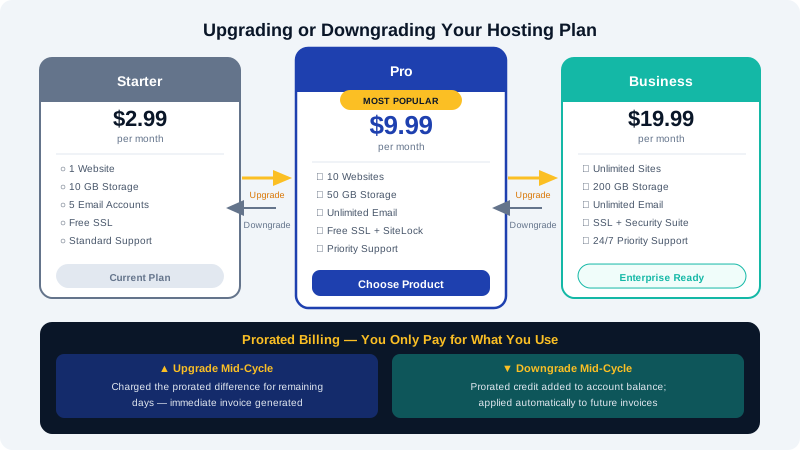
- You will see a list of available plans. Plans higher than your current one are upgrades; plans lower are downgrades.
- Click Choose Product next to the plan you want to move to.
- Review the order summary, including any prorated adjustment.
- Select a payment method and click Click to Continue.
- Complete the payment (if applicable) to confirm the change.
Once the order is processed, your account is automatically updated to the new plan. No file migration or server restart is required for same-server plan changes — your website continues running without interruption.
Understanding Prorated Billing
CyclebreezeHost uses prorated billing when you change plans mid-billing cycle, so you only pay for what you use.
Upgrading mid-cycle
When you upgrade, you are charged the difference in plan cost for the remaining days in your current billing period. For example:
- You are on a plan costing $5.00/month with 15 days remaining.
- You upgrade to a plan costing $10.00/month.
- Daily rate difference: ($10.00 − $5.00) ÷ 30 = $0.167/day
- Prorated charge: $0.167 × 15 days = approximately $2.50
This amount is added to an immediate invoice. From your next renewal date, you are billed the full new plan price.
Downgrading mid-cycle
When you downgrade, a prorated credit for the difference is applied to your account balance. This credit is used against future invoices automatically.
| Action | Immediate charge | Next renewal |
|---|---|---|
| Upgrade | Prorated difference (charged now) | Full new plan price |
| Downgrade | Credit added to account | Full new (lower) plan price |
Things to Check Before Downgrading
- Disk usage: Your current disk usage must be below the storage limit of the lower plan. If it is not, you will need to remove files or databases first.
- Number of databases and email accounts: If your plan allows 10 databases and the lower plan allows 5, you will need to remove the extras before the downgrade.
- Add-ons and features: Some features (e.g., dedicated IP, advanced caching) may only be available on higher-tier plans and will be removed if you downgrade.
Need Assistance?
If the Upgrade/Downgrade option is not visible in your Client Area, or if you are unsure which plan suits your needs, contact CyclebreezeHost support at info@cyclebreezehost.com or open a ticket in the Client Area. Our team can advise you on the best plan for your current and expected traffic levels.