Using Git Version Control in cPanel
cPanel's Git Version Control feature lets you deploy your website directly from a Git repository — either a remote repository hosted on GitHub, GitLab, or Bitbucket, or a bare repository created on the server itself. When you push a commit, cPanel can automatically pull the changes and run a deployment script, replacing manual FTP uploads with a repeatable, version-tracked workflow.
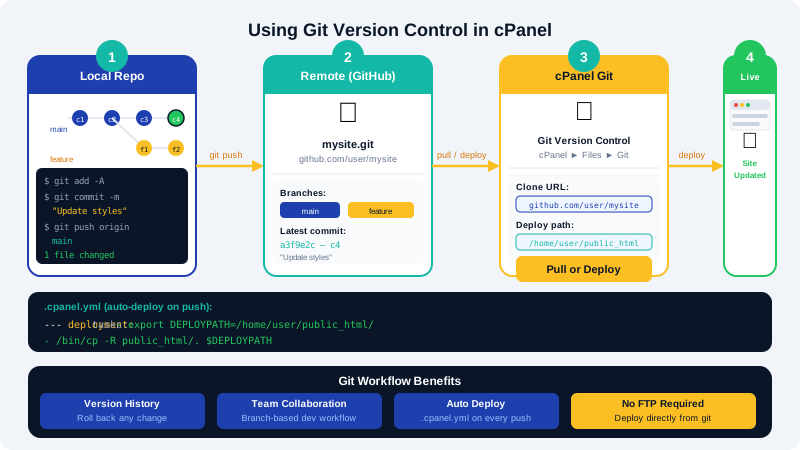
How cPanel Git Deployment Works
- You create or clone a repository through cPanel.
- cPanel links the repository to a directory on your account (typically inside
public_html). - When you push to the repository (or manually trigger a pull), cPanel checks out the latest commit into the deployment path.
- An optional
.cpanel.ymlfile in your repository defines post-checkout tasks such as running a build script or clearing a cache.
Cloning a Remote Repository
This is the most common workflow — your code lives on GitHub or a similar service and you deploy to CyclebreezeHost by pushing there.
- Log in to cPanel at
clients.cyclebreezehost.com. - Go to Files → Git Version Control.
- Click Create.
- Toggle Clone a Repository.
- In the Clone URL field, enter your repository URL — for example:
For private repositories, use an HTTPS URL with a personal access token embedded or set up an SSH deploy key (see below).https://github.com/yourname/your-repo.git - Set the Repository Path to the directory where cPanel will store the repository — for example:
/home/yourusername/repositories/your-repo - The Repository Name is auto-filled; adjust it if needed.
- Click Create. cPanel clones the repository.
Setting the Deployment Path
After cloning, configure where the checked-out files are served from.
- On the Git Version Control page, click Manage next to your repository.
- Under Deployment, verify or set the Document Root to your webroot — typically
/home/yourusername/public_htmlor a subdirectory within it. - If you are deploying a subdomain or addon domain, point this to that domain's document root.
Deploying Updates
Manual deployment
- In cPanel, go to Git Version Control → Manage for your repository.
- Click Pull or Deploy in the Deployment section.
- cPanel fetches the latest commits and checks out the repository HEAD.
Automatic deployment via webhook (recommended)
To deploy automatically every time you push to your remote:
- In your repository's Manage page, copy the Deployment URL shown under the webhook section.
- In GitHub: go to your repository Settings → Webhooks → Add webhook. Paste the URL, set the content type to
application/json, and save. - From now on, every push to the configured branch triggers an automatic pull on your CyclebreezeHost server.
Using .cpanel.yml for Post-Deploy Tasks
Create a .cpanel.yml file in the root of your repository to run commands after each deployment:
---
deployment:
  tasks:
    - export DEPLOYPATH=/home/yourusername/public_html/
    - /bin/cp -r $REPOSITORY/* $DEPLOYPATH
    - /usr/local/bin/php $DEPLOYPATH/artisan migrate --force
    - /usr/local/bin/php $DEPLOYPATH/artisan config:cache
Adjust paths and commands to match your application. The REPOSITORY variable points to the checked-out repository directory.
Using SSH Deploy Keys for Private Repositories
For private repos without embedding credentials in a URL:
- In cPanel, go to Security → SSH Access → Manage SSH Keys.
- Click Generate a New Key. Give it a name like
github-deployand generate without a passphrase (so deployments run unattended). - Authorise the key on the same page.
- Copy the public key content.
- In GitHub: go to your repository Settings → Deploy keys → Add deploy key. Paste the public key, give it a title, and save.
- Use the SSH clone URL in cPanel's Git Version Control:
git@github.com:yourname/your-repo.git.
Common Use Cases
| Scenario | Setup note |
|---|---|
| Static HTML site | Point deployment path to public_html; no .cpanel.yml needed |
| PHP application (Laravel) | Use .cpanel.yml to run composer install and artisan commands |
| Theme-only deploy | Point document root to the theme subfolder within your CMS installation |
| Multiple environments | Create separate cPanel repositories for staging and production branches |
If you encounter clone errors or webhook delivery failures, verify your repository URL, credentials, and that the server's SSH key is added as a deploy key. Contact CyclebreezeHost support at info@cyclebreezehost.com for further assistance — the team is available 24/7.