Using .htaccess for Redirects and Rewrites
The .htaccess file is a powerful Apache server configuration file that lives in your website's root directory. On CyclebreezeHost's LiteSpeed-powered hosting, .htaccess directives are fully supported and take effect immediately — no server restart needed. You can use it to redirect URLs, enforce HTTPS, clean up links, and much more.
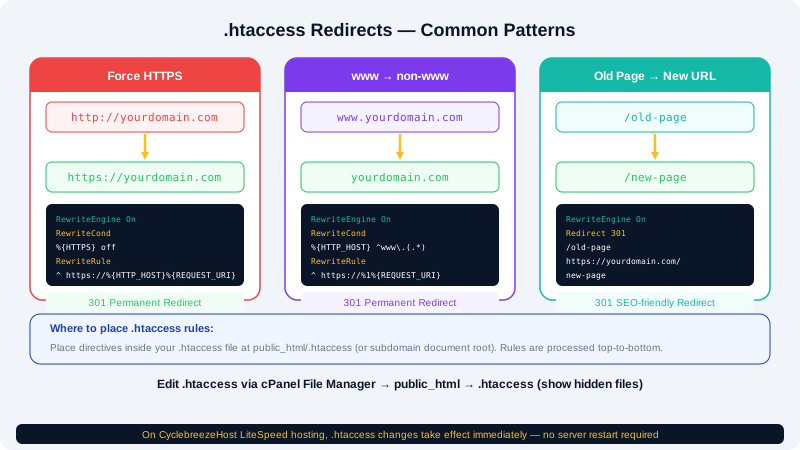
Finding and Editing Your .htaccess File
Your .htaccess file lives in public_html (or the document root of the domain you want to configure).
- Log in to the Client Area at https://clients.cyclebreezehost.com and open cPanel.
- In the Files section, click File Manager.
- Navigate to
public_html. - If you do not see a
.htaccessfile, click Settings in the top-right corner of File Manager and enable Show Hidden Files (dotfiles), then click Save. - Right-click the
.htaccessfile and choose Edit, or create a new file named.htaccessif one does not exist.
Always back up your .htaccess file before making changes. A syntax error can take your site offline, though it can be fixed immediately by reverting the file.
Force HTTPS (Redirect HTTP to HTTPS)
Once your SSL certificate is active, you should redirect all HTTP traffic to HTTPS. Add these lines near the top of your .htaccess:
RewriteEngine On
RewriteCond %{HTTPS} off
RewriteRule ^ https://%{HTTP_HOST}%{REQUEST_URI} [L,R=301]
This performs a permanent (301) redirect for every HTTP request, preserving the full path and query string.
Redirect www to Non-www (or Vice Versa)
Redirect www to non-www:
RewriteEngine On
RewriteCond %{HTTP_HOST} ^www\.yourdomain\.com [NC]
RewriteRule ^ https://yourdomain.com%{REQUEST_URI} [L,R=301]
Redirect non-www to www:
RewriteEngine On
RewriteCond %{HTTP_HOST} ^yourdomain\.com [NC]
RewriteRule ^ https://www.yourdomain.com%{REQUEST_URI} [L,R=301]
Pick one canonical form and stick with it. Using both at once will create a redirect loop.
Redirect a Single Page
To permanently redirect one URL to another — for example, after renaming a page:
Redirect 301 /old-page/ https://yourdomain.com/new-page/
Use 301 for permanent redirects (best for SEO) and 302 for temporary ones.
Redirect an Entire Directory
Redirect 301 /old-folder/ https://yourdomain.com/new-folder/
All requests to any URL under /old-folder/ will be forwarded to /new-folder/, preserving the rest of the path.
Clean URLs (Remove .php or .html Extensions)
If you want URLs like /about instead of /about.php:
RewriteEngine On
RewriteCond %{REQUEST_FILENAME} !-d
RewriteCond %{REQUEST_FILENAME}.php -f
RewriteRule ^([^\.]+)$ $1.php [NC,L]
This rewrites requests transparently without changing the visible URL.
Block Direct Access to a File
To prevent direct browser access to sensitive files (for example, a config file):
<Files "config.php">
  Order allow,deny
  Deny from all
</Files>
Custom Error Pages
You can serve your own branded error pages instead of the server defaults:
ErrorDocument 404 /404.html
ErrorDocument 500 /500.html
Create the corresponding HTML files in your public_html folder.
Troubleshooting
- 500 Internal Server Error after editing: You have a syntax error in the file. Open it in File Manager, check for typos, and save. You can also check Error Logs in cPanel under Metrics to see the exact error.
- Redirect not working: Make sure
RewriteEngine Onappears before anyRewriteRulelines. If your site uses WordPress or another CMS, place your custom rules above the CMS-generated block. - Changes not taking effect immediately: LiteSpeed caches rules aggressively. Clear your browser cache and wait a moment.
If you need help crafting a specific redirect rule, open a support ticket in the Client Area or email info@cyclebreezehost.com — CyclebreezeHost support is available 24/7.