Using the cPanel Terminal and SSH Keys
SSH (Secure Shell) gives you direct command-line access to your hosting account, letting you run scripts, manage files, install packages within your account, and perform tasks that are impractical through the cPanel interface. CyclebreezeHost provides two ways to access the command line: the browser-based Terminal built into cPanel, and a traditional SSH client on your local machine using key-based authentication.
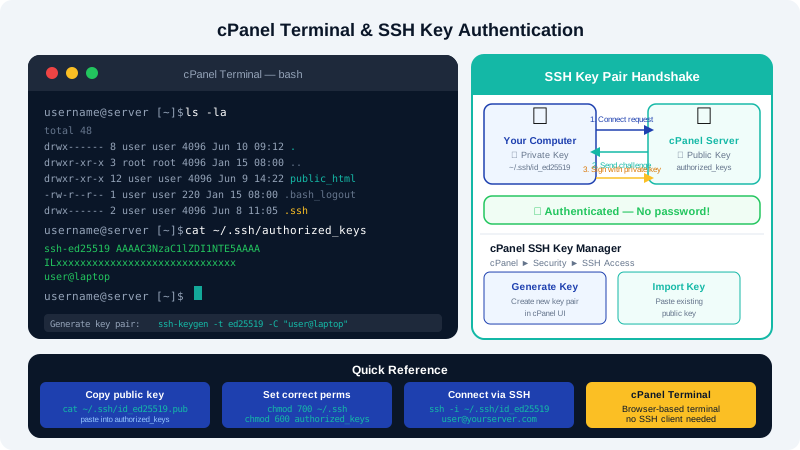
Using the cPanel Browser Terminal
The browser terminal is the quickest way to get a command line without any local setup.
- Log in to cPanel at
clients.cyclebreezehost.com. - Scroll to the Advanced section and click Terminal.
- Read and accept the usage warning.
- A terminal session opens in your browser. You are logged in as your cPanel user in your home directory.
The browser terminal supports standard Linux commands: ls, cd, cp, mv, rm, php, mysql, composer, git, and more. It is ideal for quick tasks, though a local SSH client is better for long-running processes.
Connecting via SSH from Your Local Machine
Step 1 — Find your SSH hostname and port
- Hostname: your domain name or server IP address
- Port:
22(standard SSH — confirm with CyclebreezeHost support if you cannot connect) - Username: your cPanel username
Basic connection command:
ssh yourusername@yourdomain.com
You will be prompted for your cPanel password. To avoid typing a password every time, set up SSH key authentication as described below.
Setting Up SSH Key Authentication
Key-based auth is more secure than passwords and eliminates repeated password prompts.
Step 1 — Generate a key pair on your local machine
Open a terminal on your computer and run:
ssh-keygen -t ed25519 -C "your-email@example.com"
When prompted, accept the default file location (~/.ssh/id_ed25519) or specify a custom path. Optionally set a passphrase for additional security.
This creates two files:
~/.ssh/id_ed25519— your private key (never share this)~/.ssh/id_ed25519.pub— your public key (uploaded to the server)
Step 2 — Import the public key into cPanel
- In cPanel, go to Security → SSH Access.
- Click Manage SSH Keys.
- Click Import Key.
- Paste the contents of your
id_ed25519.pubfile into the Public Key field. - Give the key a name (e.g.,
my-laptop) and leave the Private Key field empty. - Click Import.
Step 3 — Authorise the key
- On the SSH Access → Manage SSH Keys page, find your imported key.
- Click Manage next to it, then click Authorize.
Step 4 — Test the connection
ssh yourusername@yourdomain.com
You should connect without a password prompt (or with only your key passphrase if you set one).
Managing Multiple Keys
If you work from several machines, repeat the import and authorisation steps for each machine's public key. To revoke access for a machine, return to Manage SSH Keys, click Manage on that key, and click Deauthorize, then optionally delete the key.
Useful SSH Commands for Hosting Tasks
| Task | Command |
|---|---|
| List files including hidden | ls -la |
| Check PHP version | php -v |
| Run a PHP script | php script.php |
| Check disk usage | du -sh ~/public_html |
| Tail error log | tail -f ~/logs/error_log |
| Run Composer | composer install |
| Run WP-CLI | wp --info |
Security Recommendations
- Disable password-based SSH login after setting up key auth by contacting CyclebreezeHost support.
- Use a strong passphrase on your private key.
- Never copy your private key to the server or any shared machine.
- Rotate keys if a machine is lost or compromised — deauthorise the old key immediately.
For SSH access issues or to verify your account's SSH is enabled, contact CyclebreezeHost support at info@cyclebreezehost.com. The team is available 24/7.