VAT and Invoices for Businesses
If your business needs VAT-compliant invoices or you want your company name, registration number, and VAT number to appear on your billing documents, you can configure these details directly in the Client Area. This article explains how tax is applied to CyclebreezeHost invoices and how to manage your business billing information.
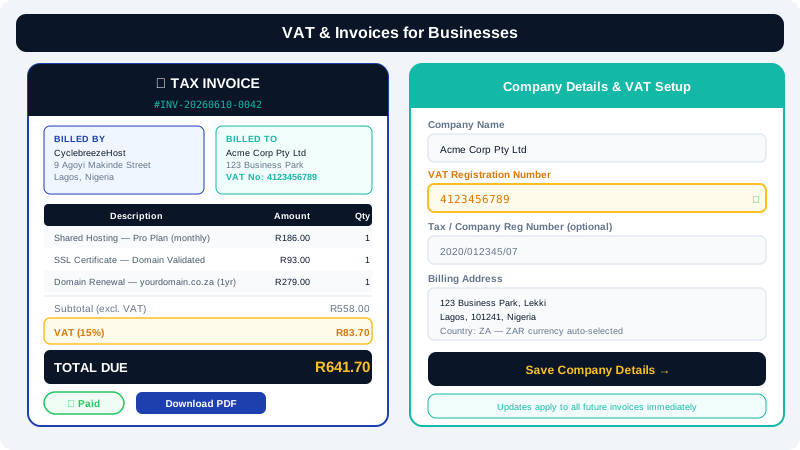
How VAT Is Applied
Whether VAT (or an equivalent consumption tax) is charged on your invoices depends on your location and the tax rules that apply to digital services:
| Customer location | Typical tax treatment |
|---|---|
| South Africa | VAT at the current rate (15%) is added for ZAR accounts where applicable |
| Other countries | No VAT charged by default; local rules may vary |
If you are a VAT-registered business and your jurisdiction allows you to reclaim input tax on digital services, the VAT amount shown on your invoice is the figure to use for your tax return.
Note: Tax rules for cross-border digital services can be complex. If you have specific compliance requirements, consult your accountant or tax advisor.
Adding Your Business Details to Invoices
By default, invoices display the name and address you provided at registration. To have your company name, registration number, or VAT number printed on your invoices:
- Log in to the Client Area at https://clients.cyclebreezehost.com.
- Click your name or profile icon in the top-right corner and select Edit Account Details (or go to Account > Details).
- Fill in the relevant fields:
- Company Name — your registered business name.
- Address — your business's registered address.
- Tax ID / VAT Number — enter your VAT registration number here if applicable.
- Click Save Changes.
All invoices generated from this point onward will include these details. Previously issued invoices are not automatically updated, but you can request a re-issue by contacting support.
Downloading Invoice PDFs
CyclebreezeHost invoices are available as PDF documents suitable for bookkeeping and submission to your accounts department:
- Go to Billing > My Invoices in the Client Area.
- Click on the invoice you need.
- Click the Print or Download PDF button.
The PDF includes your company details (if configured), itemised services, tax breakdown, and CyclebreezeHost's registered business information.
VAT Exemption for VAT-Registered Businesses (Reverse Charge)
If your business is VAT-registered in the European Union or another jurisdiction where the reverse charge mechanism applies to B2B digital services, you may be eligible to receive invoices without VAT added. To apply for reverse charge treatment:
- Add your VAT number to your account details (see above).
- Contact info@cyclebreezehost.com with your VAT registration number and country.
- Our billing team will verify your VAT registration and update your account accordingly.
Once approved, new invoices will show your VAT number and a reverse charge notation instead of a VAT amount.
Requesting a Credit Note or Invoice Amendment
If an invoice contains an error (wrong company name, incorrect address, or wrong tax rate), contact CyclebreezeHost support as soon as possible:
- Email info@cyclebreezehost.com with your invoice number and a description of the required correction.
- Our billing team will issue a corrected invoice or a credit note and replacement invoice where necessary.
Bulk Invoices and Consolidated Billing
If your business has multiple CyclebreezeHost accounts (for example, separate accounts for different departments or clients), contact support to discuss whether consolidated billing can be arranged for your situation.
Keeping Records
CyclebreezeHost retains your invoice history indefinitely in the Client Area so you can access past documents at any time. However, we recommend downloading and storing copies locally as part of your own record-keeping practice.
Questions About Tax on Your Account?
If you are unsure whether VAT should be applied to your invoices, or if the tax shown appears incorrect, contact CyclebreezeHost support at info@cyclebreezehost.com or open a ticket in the Client Area at https://clients.cyclebreezehost.com. Our billing team is available 24/7.